Install your first section
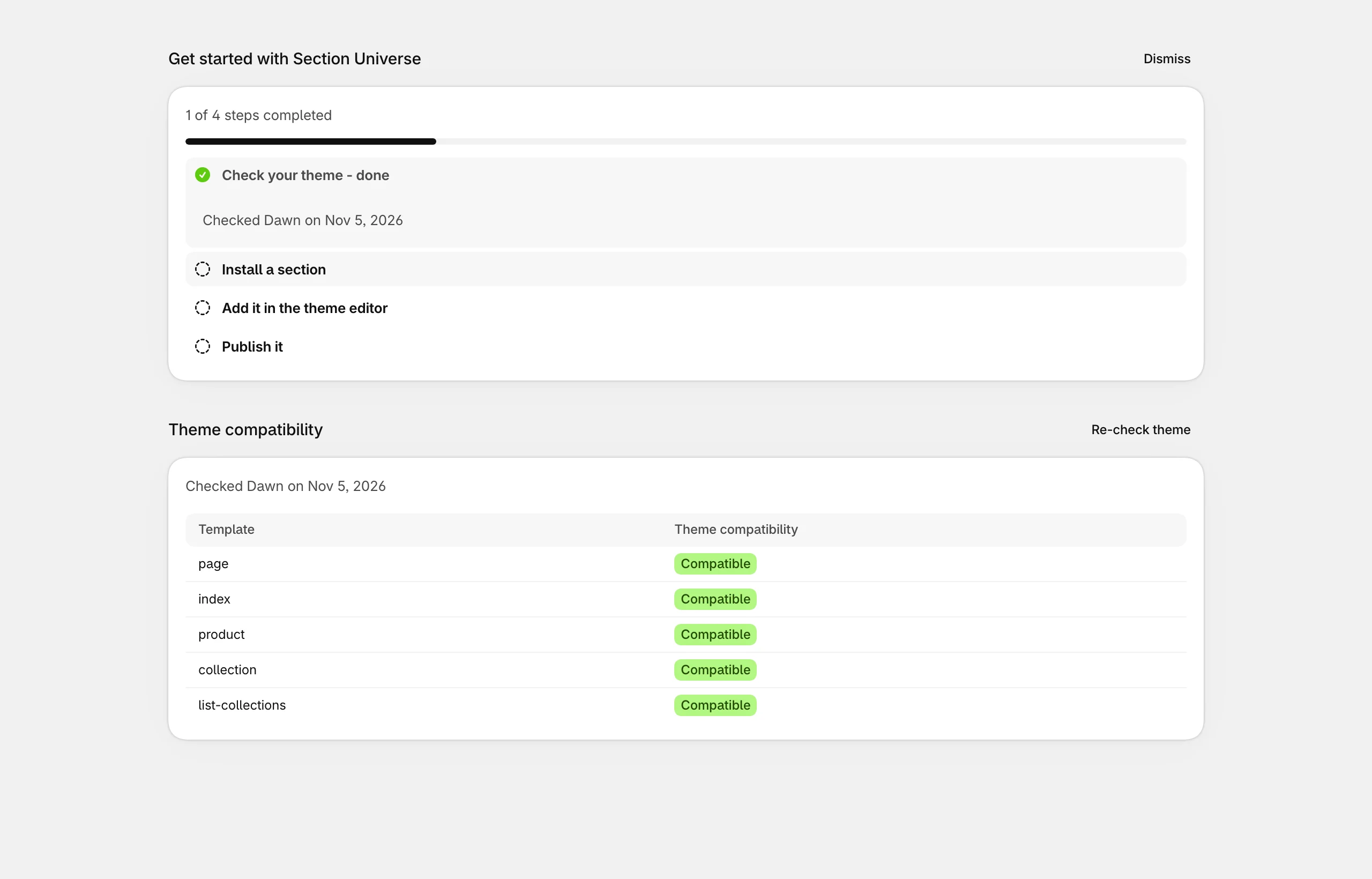
Open Section Universe from Apps in your Shopify admin. The home page walks you through four steps and ticks them off as you go.
Check your theme
On the app’s home page, choose Check my theme. The app reads your published theme (it never changes it) and lists which page types can hold app sections. Most themes from the Shopify Theme Store support all of them.
Pick a section
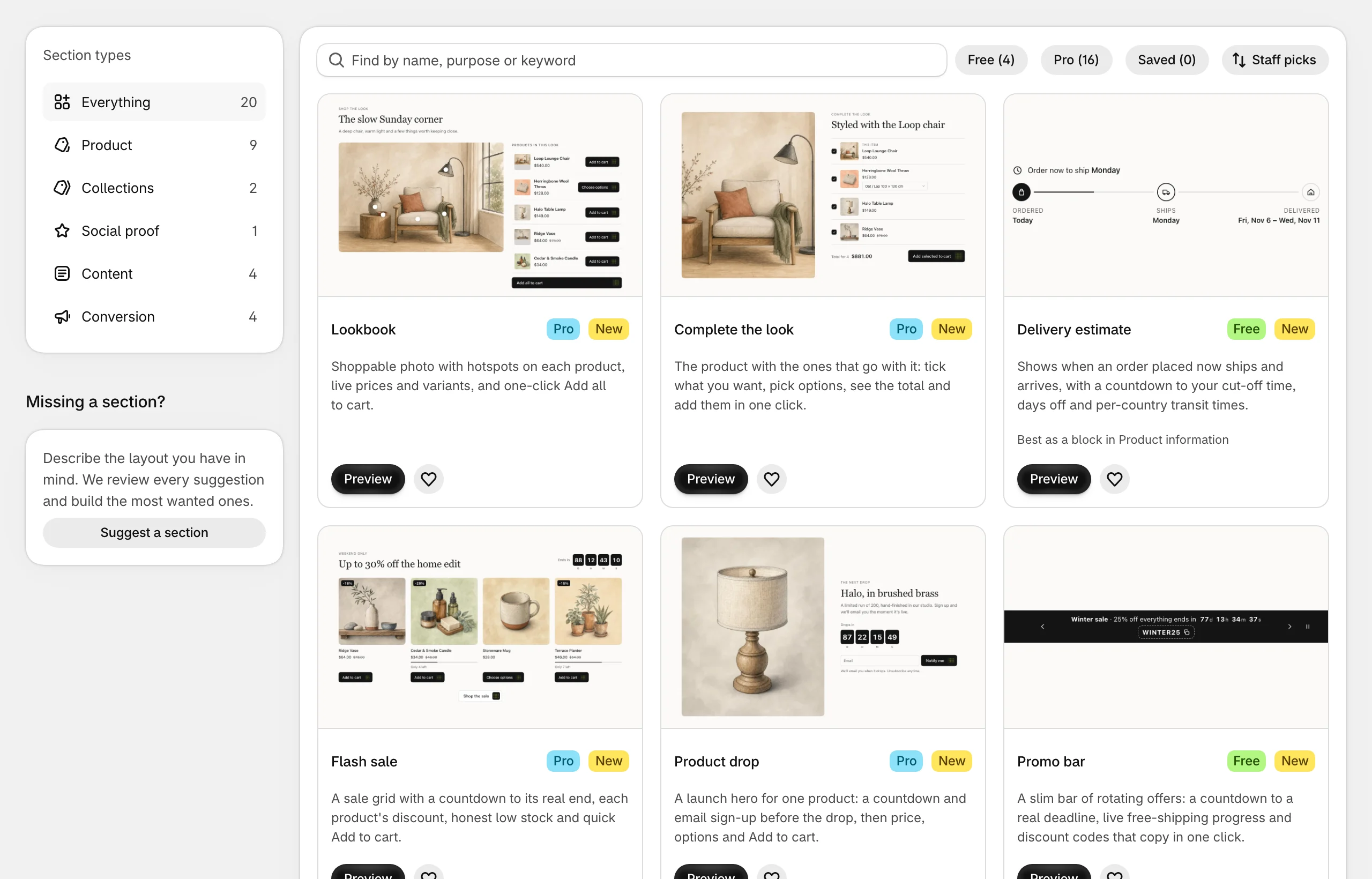
Open Sections. Filter by type (Product, Collections, Content…) or by plan, search by name or purpose, and tap the heart to save a section for later. Preview opens a section with sample content: switch between desktop and mobile and between its examples.
Install it into a theme
In the preview, choose a Theme (your live theme is marked live) and select Install to theme. The app adds the section’s files to that theme. Your storefront doesn’t change until you add the section to a page.
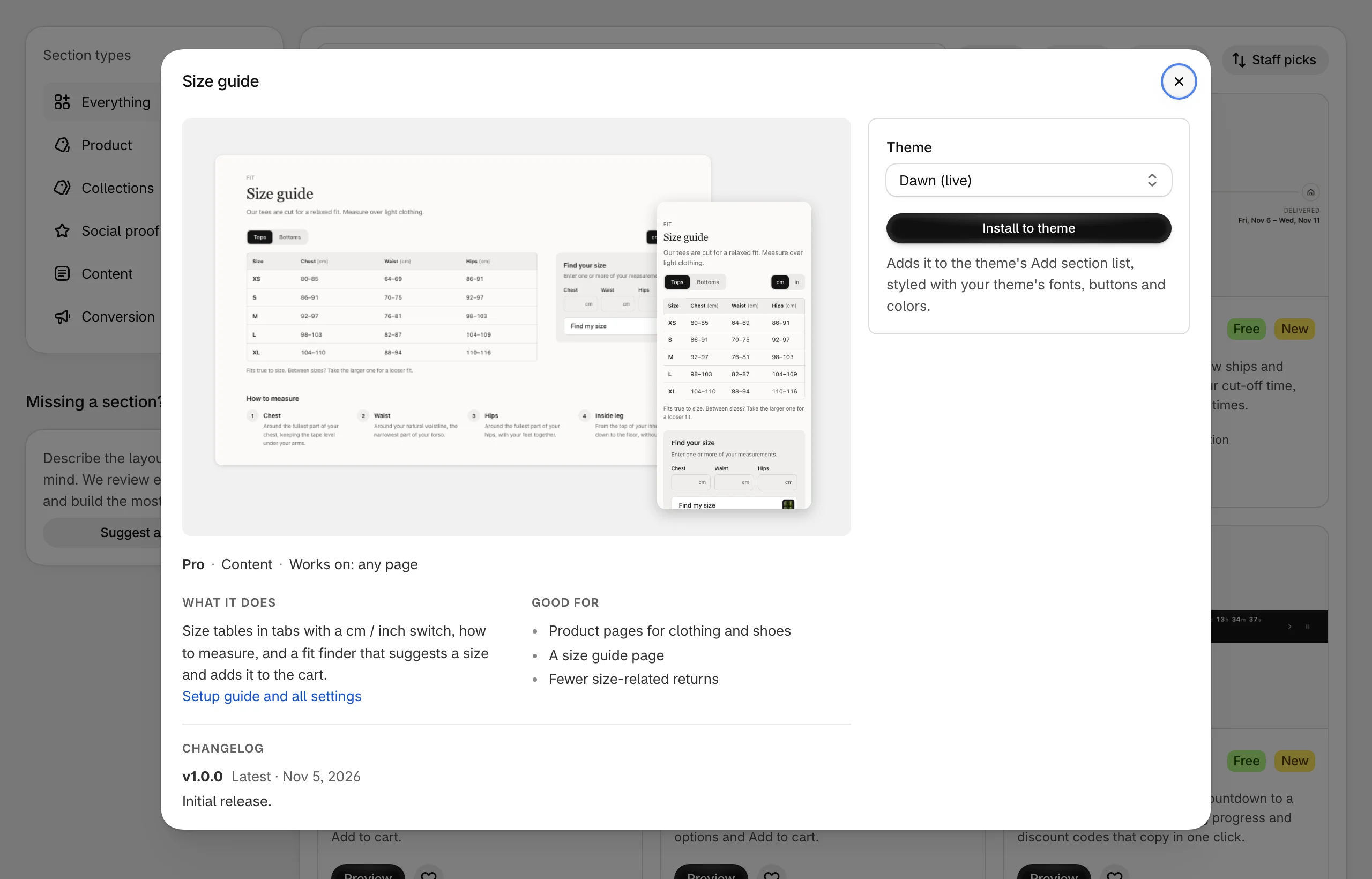
Pro sections show Upgrade to Pro instead of Install on the Free plan. See Plans and billing.
Add it to a page
Open the theme editor and add the section where you want it: see Set it up in the theme editor.
Good to know
- Install into each theme you use. A section installed into your live theme isn’t in your other themes, so install it again before you publish a different theme.
- Installing only adds files whose names start with
su-. Your theme’s own files aren’t changed. - Installed lists every section you’ve installed, in which theme, and whether it’s placed on a page yet.