Quick order matrix
ProProductv1.0.0
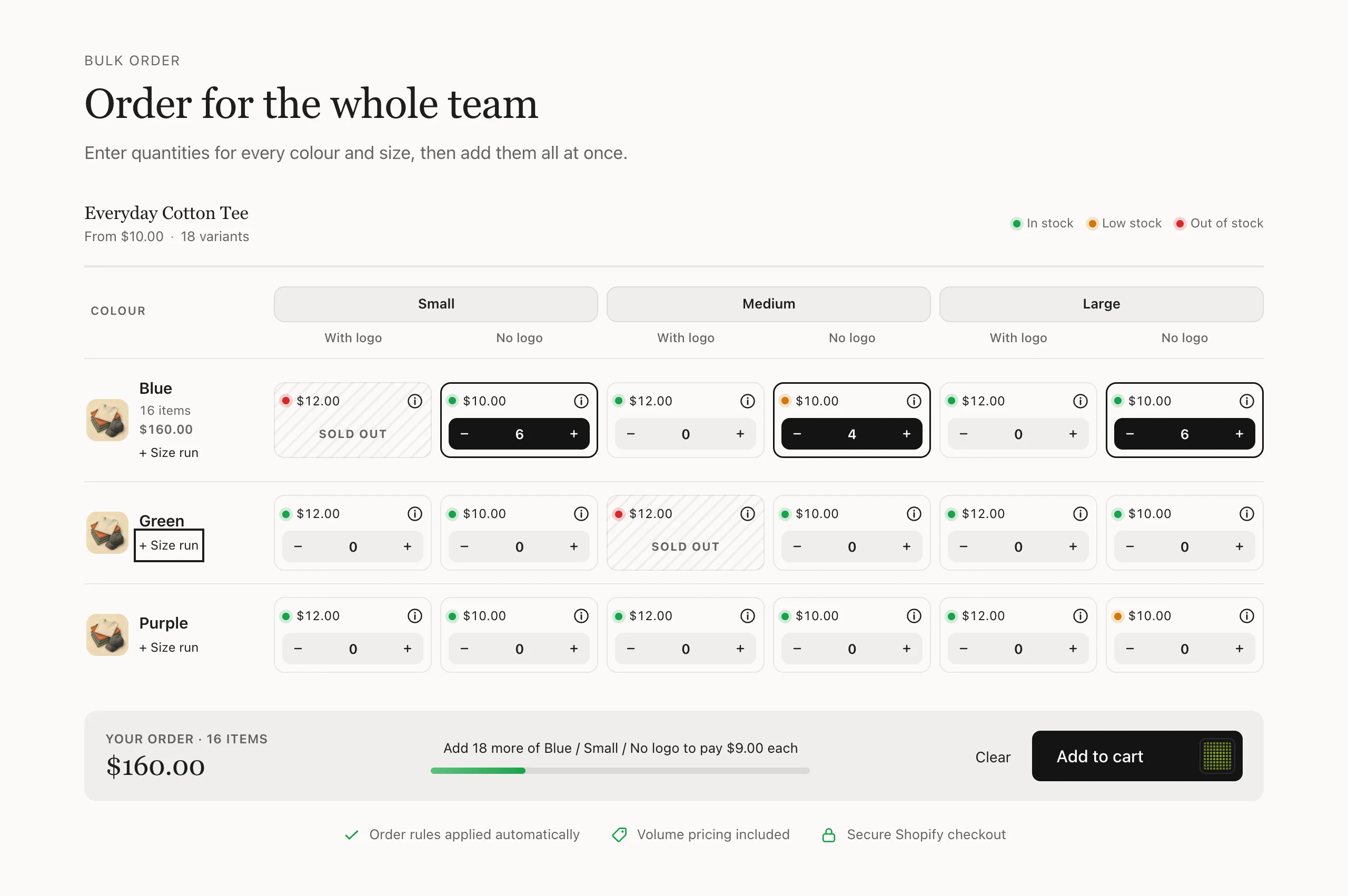
Built for wholesale and repeat buyers. Every variant of a product sits in a grid, colours down the side and sizes (and a third option) across the top, with its stock state, price and a quantity field. Buyers fill in the quantities they need, see the item count and subtotal update, and add everything to the cart in one go. Each variant's Shopify quantity rules (minimum, maximum, increments) and B2B volume pricing are respected, and stock limits are never exceeded.
Good for: Wholesale and B2B ordering · Team and uniform orders · Restocking many sizes and colours

When to use it
Use it on product pages for wholesale and repeat buyers, or on a page of its own for one product that’s often bought in many sizes and colors.
- One order, many variants. Every variant sits in a grid with a quantity field. Buyers fill in what they need and add it all to the cart in one step.
- Stock and price where they choose. Each cell shows whether the variant is in stock, low or sold out, and its price. The item count and subtotal update as buyers type.
- Rules followed for them. Quantities keep to each variant’s minimum, maximum and increment from Shopify, never go over the stock you track, and the subtotal includes B2B volume prices.
Set it up
Add the section
On your product template, choose Add section and pick SU: Quick order matrix. On a product page it uses that page’s product. On another page, pick one under Product.
Check the order of your product’s options
The grid’s rows use the product’s first option, for example Color. The second option forms the columns, and a third option splits each column in two or more. To swap rows and columns, reorder the options on the product in your Shopify admin. Combinations that don’t exist show as not available, and sold-out variants show Sold out instead of a quantity field.
Choose what each cell shows
- Show variant images puts a picture at the start of each row, from the row’s first variant (or the product’s image).
- Show prices in cells shows each variant’s price.
- Stock is Show status, Show status and quantity or Hide. With quantity, the stock count shows in the variant’s details, which buyers open with the info button in each cell.
- Low stock below sets when a variant counts as low stock.
- Show SKU in details adds the SKU to those details.
Stock counts and low stock only apply to variants whose inventory you track and that don’t sell when out of stock. Others always show as in stock until they’re unavailable.
Offer a size run
Show size run button adds a button to each row that adds one step of every available variant in that row: its minimum the first time, then its increment. Rename it with Size run label.
Decide what happens after adding
After adding to cart either opens the cart (Open the cart) or keeps buyers on the page (Stay on the page). Keep Clear quantities after adding on to empty the grid for the next order.
Finish the look
Show ordering reassurances adds short notes under the grid: Order rules applied automatically when the product has quantity rules, Volume pricing included when it has quantity price breaks, and Secure Shopify checkout. Look chooses between Blend with the theme and Card.
Minimums, maximums, increments and volume prices come from Shopify B2B catalogs, so buyers only get them when they’re signed in to a company account that has the catalog. If a typed quantity doesn’t fit a variant’s rules, the grid rounds it to the nearest amount Shopify accepts and asks the buyer to check before adding.
Try it
Settings
In the theme editor, in the order you'll see them. Every section also has the heading and style settings.
Matrix
| Setting | What it does |
|---|---|
| ProductProduct | Leave empty on product pages to use the page's product. |
| LookDropdown | |
| Show variant imagesCheckbox | |
| Show prices in cellsCheckbox | |
| StockDropdown | |
| Low stock belowSlider (1–50) | |
| Show SKU in detailsCheckbox | |
| Show size run buttonCheckbox | Adds one step of every available variant in a row (its minimum, then its increment). |
| Size run labelText | |
| After adding to cartDropdown | |
| Clear quantities after addingCheckbox | |
| Show ordering reassurancesCheckbox | Order rules, volume pricing and secure checkout notes under the matrix. |
Good to know
- Rows use the product's first option; the other options (up to two) form the columns.
- Volume pricing shows only for B2B customers whose catalog has price breaks; the cart applies the final prices.
- Without JavaScript the grid still shows availability and prices; ordering from it needs JavaScript.
Changelog
- 1.0.0: Initial release.