Store locator
ProContentv2.0.0
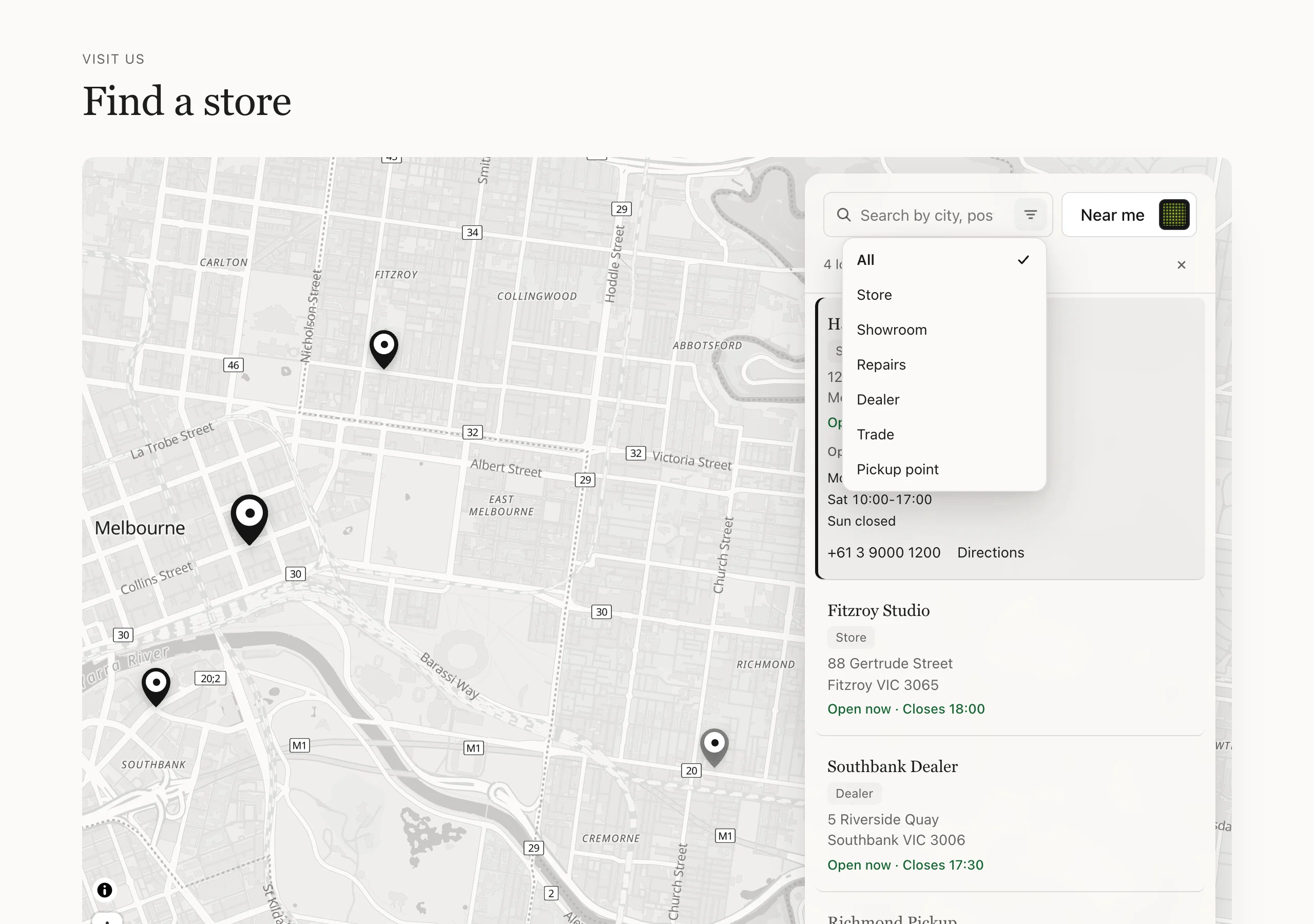
Help shoppers find you in person. Every store, dealer or pickup point appears on one vector map with your pins (your accent colour, optionally your logo), clustered where they crowd, and the map can take your theme's colours. Choose the immersive layout (a tall map with the list floating over it) or a list beside the map. Shoppers search by city, postcode or name, sort by distance with Near me, filter by type or tag, and see which locations are open now or coming soon; choosing one in the list or on the map flies there, with opening hours, contact links and directions (Apple Maps on iPhone). Each location has its own link. Locations come from blocks or a metaobject in Shopify admin; the map needs no API key and sets no tracking cookies.
Good for: Find a store page · Dealer or stockist finder · Pickup points

When to use it
Use it on a Find a store or Stockists page to show where shoppers can visit you, buy your products or pick up an order.
- Every location on one map. Your stores, dealers or pickup points show as pins in your accent color, grouped where they crowd together. The map needs no API key.
- The nearest one first. Shoppers search by city, postcode or name, or tap Near me to sort locations by distance. Filters narrow the list by type or tag.
- Everything to make the trip. Each location shows its address, opening hours with Open now or Closed, phone, email, website and a Directions link (Apple Maps on iPhone, Google Maps elsewhere).
Set it up
Add the section
Create a page in Shopify admin (for example Find a store), open it in the theme editor, choose Add section and pick SU: Store locator. It starts with two example Store blocks.
Choose where your locations come from
Under Locations, Locations from has two options:
- Store blocks in this section suits up to 50 locations, each edited in the theme editor.
- Metaobject entries suits larger lists (up to 250), or locations you’d rather manage in Shopify admin. See the last step.
Fill in each Store block
Select a Store block and fill in its Name, Address, Phone, Email and Website. Add a Photo if you like. Add another Store block for each location.
Type (for example Store, Dealer or Pickup point) and Tags (comma-separated, for example
Showroom, Repairs) become the filters shoppers can pick from. Filters show only when your locations have at least
two different types or tags between them.
Set Status to Coming soon or Temporarily closed for locations that aren’t open yet or are shut for a while.
Add opening hours
Write Opening hours one line per day or range of days, using English day names and the 24-hour clock:
Mon-Fri 09:00-18:00
Sat 10:00-16:00
Sun closed
The section uses these lines to show Open now · Closes 18:00 or Closed · Opens 10:00, based on the time on the shopper’s device. Days you leave out show no open or closed state.
Add coordinates
Paste the location’s Latitude and Longitude. In Google Maps, right-click the place to copy its coordinates. These place the pin exactly and are used for Near me.
If you leave them empty, the section tries to place the location from its address. The theme editor shows a note saying which locations it placed this way and which it couldn’t find. Shoppers don’t see this note.
Set up finding
Under Finding, choose what shoppers can use: Show search, Show Near me and Show filters by type and tag. With Near me on, set Distance in to Kilometres or Miles.
When a shopper types a place in the search box and presses Enter, locations are sorted by distance from that place.
Style the map
Under Map, choose a Layout:
- Immersive: tall map, floating list puts the list over the map. Shoppers can hide it to see the whole map.
- Split: list beside the map keeps them side by side.
Then set Map height, Map style and List position. Your theme’s colours tints the map from this section’s background color to its text color. Add a Pin logo, a small square logo or icon shown inside each pin.
Turn off Show map for a plain list. On phones, shoppers switch between List and Map.
If you ask visitors for consent
If your store asks consent before loading content from other websites, turn on Load the map only when shoppers ask. The section then shows a Show map button instead of loading the map on its own.
Or read locations from a metaobject
In Shopify admin, go to Settings → Custom data → Metaobjects and add a definition for your locations. Give it
fields with these keys (you only need the ones you use, but name is required):
name, type, status, address, phone, email, website, hours, latitude, longitude, tags, imageFor status, use the values open, soon or closed. tags can be a single line of text with commas or a list.
Turn on storefront access for the definition so your theme can read the entries, then add one entry per location.
Back in the theme editor, set Locations from to Metaobject entries and enter the definition’s type handle in
Metaobject type. The default is store_location.
Every location has its own link. When a shopper picks one, the page address gains ?store= and the location’s
name, for example /pages/find-a-store?store=city-dealer. Use such a link in emails or on social media to open the
locator on that location.

Try it
Settings
In the theme editor, in the order you'll see them. Every section also has the heading and style settings.
Locations
| Setting | What it does |
|---|---|
| Locations fromDropdown | Blocks suit up to 50 locations. For more, or to manage them in Shopify admin, use a metaobject. |
| Metaobject typeText | The type's handle. Field keys read: name, type, status (open, soon or closed), address, phone, email, website, hours, latitude, longitude, tags, image. |
Finding
| Setting | What it does |
|---|---|
| Show searchCheckbox | |
| Show Near meCheckbox | Sorts by distance from the shopper. Locations need a latitude and longitude. |
| Distance inDropdown | |
| Show filters by type and tagCheckbox |
Map
| Setting | What it does |
|---|---|
| Show mapCheckbox | Every location on one map with your pins. OpenFreeMap tiles: no API key, no tracking cookies. |
| LayoutDropdown | |
| Map heightDropdown | |
| Map styleDropdown | Your theme's colours tints the map from this section's background to its text colour. |
| Pin logoImage | A small square logo or icon shown inside each pin. Pins use the accent colour. |
| List positionDropdown | |
| Load the map only when shoppers askCheckbox | Shows a Show map button first, for stores that ask consent before loading third-party content. |
| LookDropdown |
Blocks go inside the section: use Add block, up to 50 in all, and drag them to change the order.
Block: Store
| Setting | What it does |
|---|---|
| NameText | |
| TypeText | For example Store, Dealer or Pickup point. Shown as a filter. |
| StatusDropdown | |
| AddressMulti-line text | |
| PhoneText | |
| EmailText | |
| WebsiteLink | |
| Opening hoursMulti-line text | One line each, for example: Mon-Fri 09:00-18:00, Sat 10:00-16:00, Sun closed. Shows Open now. |
| LatitudeText | For Near me and the map pin. In Google Maps, right-click the place to copy its coordinates. |
| LongitudeText | |
| TagsText | Comma-separated, for example Showroom, Repairs. Shown as filters. |
| PhotoImage |
Good to know
- Up to 50 locations as blocks; use a metaobject type for more (up to 250).
- Locations without a latitude and longitude are placed from their address (looked up once with OpenStreetMap through the app, then cached); enter coordinates for exact pins.
- Searching a place and pressing Enter looks it up the same way, to sort locations by distance from it.
- Opening hours use English day names and the 24-hour clock (e.g. Mon-Fri 09:00-18:00); other formats show no Open now state.
- Open now uses the shopper's clock, so it suits locations in the shopper's time zone.
- The map uses OpenFreeMap's public tiles and loads MapLibre from jsDelivr.
- Without JavaScript every location shows with its address, hours and contact links; search, Near me and the map need JavaScript.
Changelog
- 2.0.0: One map with every location: branded pins, clusters, theme-coloured map styles, immersive and split layouts, a location sheet on phones, Coming soon and Temporarily closed, links to each location and Apple Maps directions on iPhone.
- 1.0.0: Initial release.