Size guide
ProContentv1.0.0
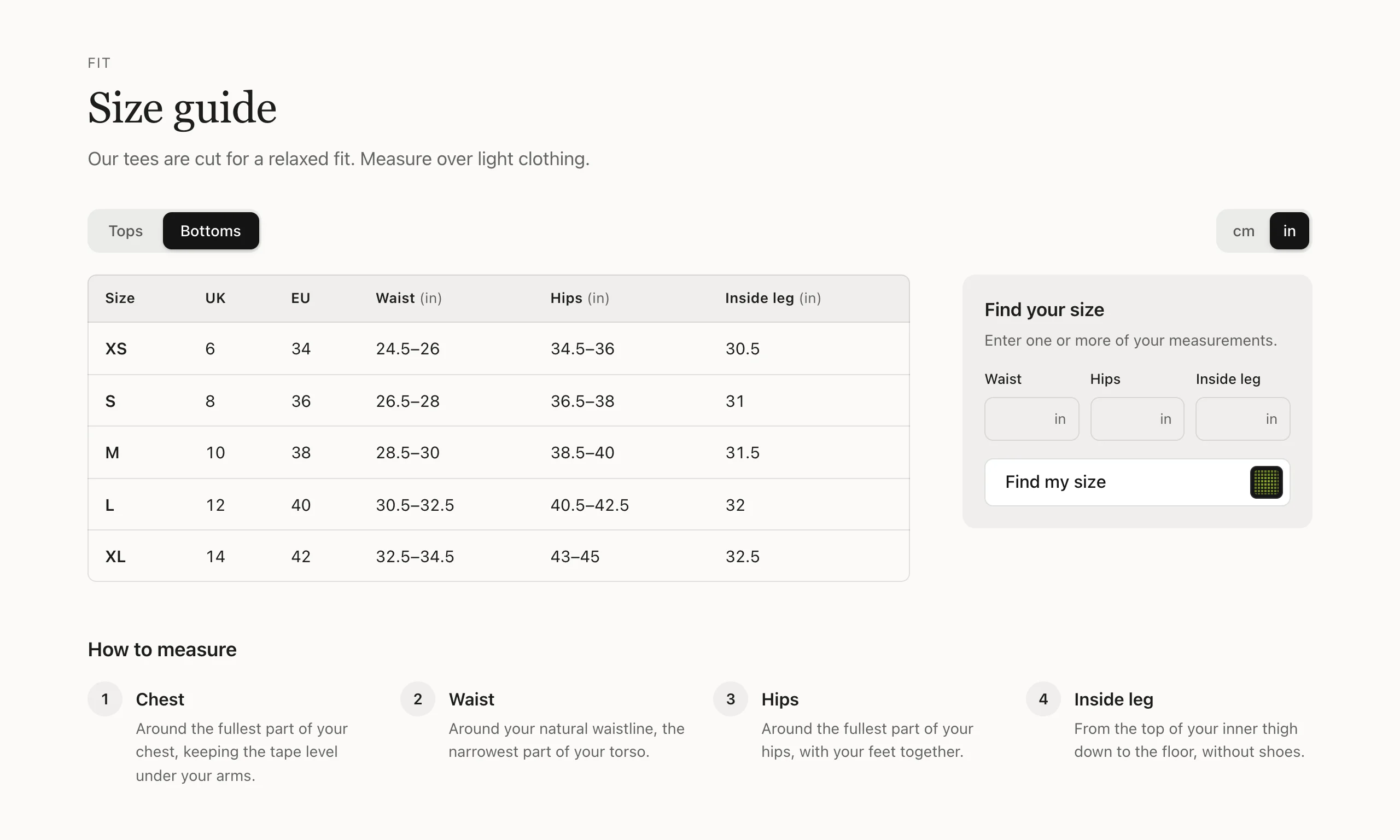
Answer "which size?" before it becomes a return. Paste each size table straight from your spreadsheet: tops, bottoms and shoes sit in tabs, and shoppers switch every measurement between centimetres and inches with one tap. A fit finder takes the measurements they know and highlights the size that fits, and on product pages it offers that size's Add to cart, keeping the colour they picked. How-to-measure steps, with or without photos, sit below. Use it on product pages, a size guide page or anywhere a shopper asks about fit.
Good for: Product pages for clothing and shoes · A size guide page · Fewer size-related returns

When to use it
Use it wherever shoppers ask which size?: under the product information on clothing and shoe pages, or on a dedicated size guide page linked from your menu.
- Several tables in one place. Tops, bottoms and shoes each get a tab, so one section covers the whole store.
- Their units, not yours. Shoppers switch every measurement between centimetres and inches; the section remembers their choice.
- An answer, not just a table. The fit finder takes the measurements a shopper knows and highlights the size that fits. On a product page it offers that size’s Add to cart, keeping the color they picked.
Set it up
Add the section
On a product template or a page, choose Add section and pick SU: Size guide. It starts with one size table and two how-to-measure steps.
Paste your size table
Select the Size table block and fill in Table, one row per line:
Size, Chest, Waist
S, 86-91, 71-76
M, 92-97, 77-82
L, 98-103, 83-88
The first row names the columns and the first column names the sizes. Write ranges as 86-91. You can also copy
cells straight from a spreadsheet and paste them in.
If your table has several columns of size names (for example Size, UK and EU), set Columns that name sizes to that number. The columns after them are treated as measurements: they’re converted between cm and inches and used by the fit finder.
Add more tables
Add another Size table block for each kind of product. With two or more, they show as tabs named after Tab name.
Say which units you used
Under Measurements, set Measurements in the tables are in to centimetres or inches. Shoppers can switch to the other unit unless you turn off Let shoppers switch between cm and inches.
Connect the fit finder to your product
On a product page the fit finder uses that page’s product. Elsewhere, pick one under Fit finder → Product. To add a
size to the cart, the product needs an option whose values match your table’s first column: S, M, L match
Small, Medium and Large. If your option isn’t called Size, enter its name in Size option name.
Explain how to measure
Edit the How to measure blocks, one per measurement, with an optional picture each.
The theme editor shows a note if a table row has more or fewer values than the first row, or if the product has no matching size option. Shoppers never see these notes.

Try it
Settings
In the theme editor, in the order you'll see them. Every section also has the heading and style settings.
Measurements
| Setting | What it does |
|---|---|
| Measurements in the tables are inDropdown | |
| Let shoppers switch between cm and inchesCheckbox |
Fit finder
| Setting | What it does |
|---|---|
| Show a fit finderCheckbox | Shoppers enter their measurements and get the size that fits, from the table they're looking at. |
| HeadingText | |
| ProductProduct | Used by the fit finder. Leave empty on product pages to use the page's product; shoppers can then add the size it suggests. |
| Size option nameText | The product option that holds sizes, matched to the first column of the table. |
Blocks go inside the section: use Add block, up to 12 in all, and drag them to change the order.
Block: Size table
| Setting | What it does |
|---|---|
| Tab nameText | |
| TableMulti-line text | One row per line, values separated by commas, or paste cells from a spreadsheet. The first row names the columns; the first column names the sizes. Write ranges as 86-91. |
| Columns that name sizesSlider (1–4) | Columns on the left such as Size, UK or EU. The others are measurements: converted between cm and inches and used by the fit finder. |
| Note below the tableRich text | E.g. "Fits true to size. Between sizes? Take the larger one." |
Good to know
- The fit finder suggests the smallest size whose upper measurement covers every number entered; it doesn't know the fabric's stretch or the cut.
- Inches are rounded to the nearest half inch and centimetres to the nearest whole number.
- Adding to the cart needs a product with an option whose values match the first column of the table (e.g. S or Small).
- Without JavaScript every size table shows under its own title in the units you entered; the unit switch and fit finder need JavaScript.
Changelog
- 1.0.0: Initial release.