Welcome to Faber
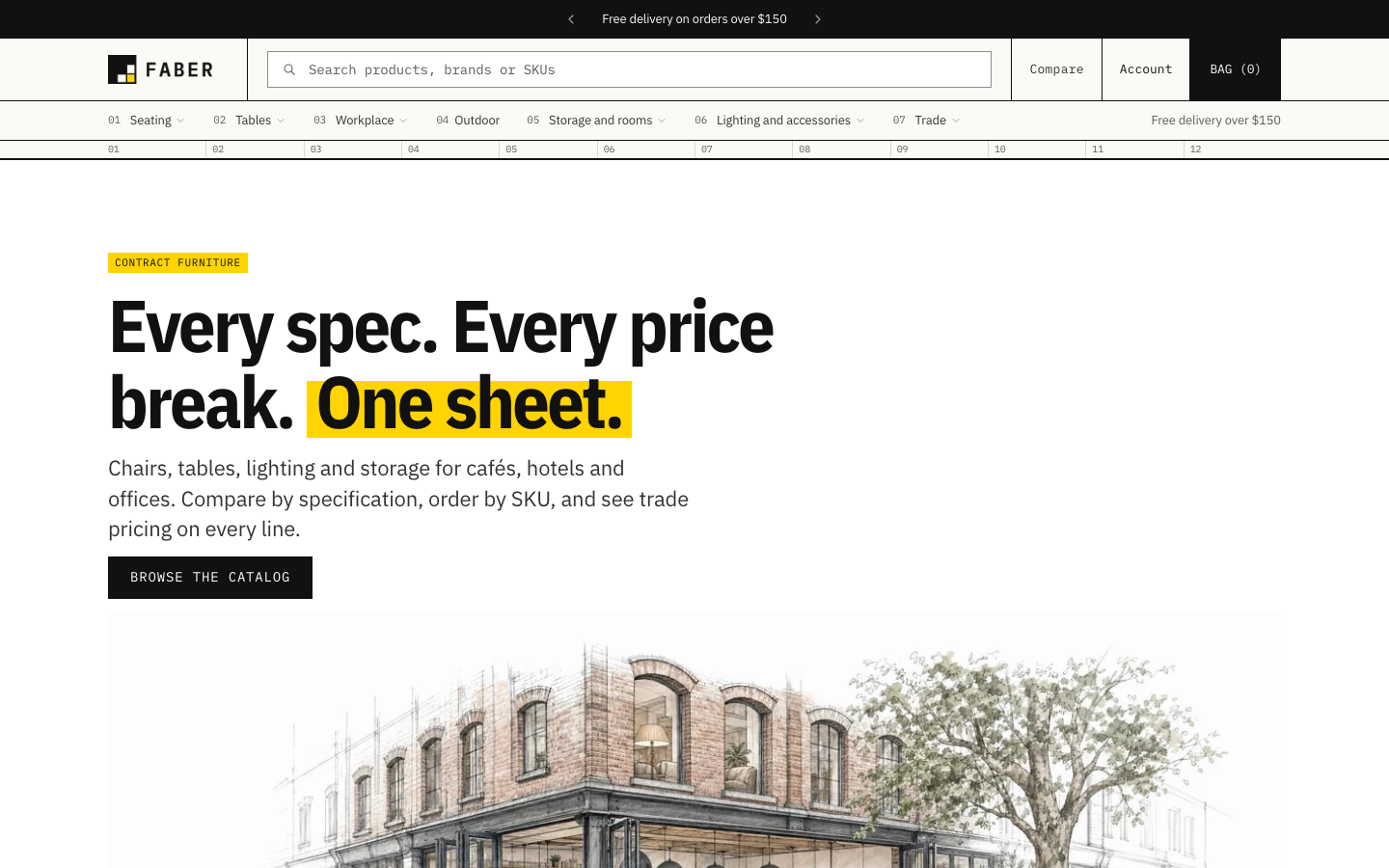
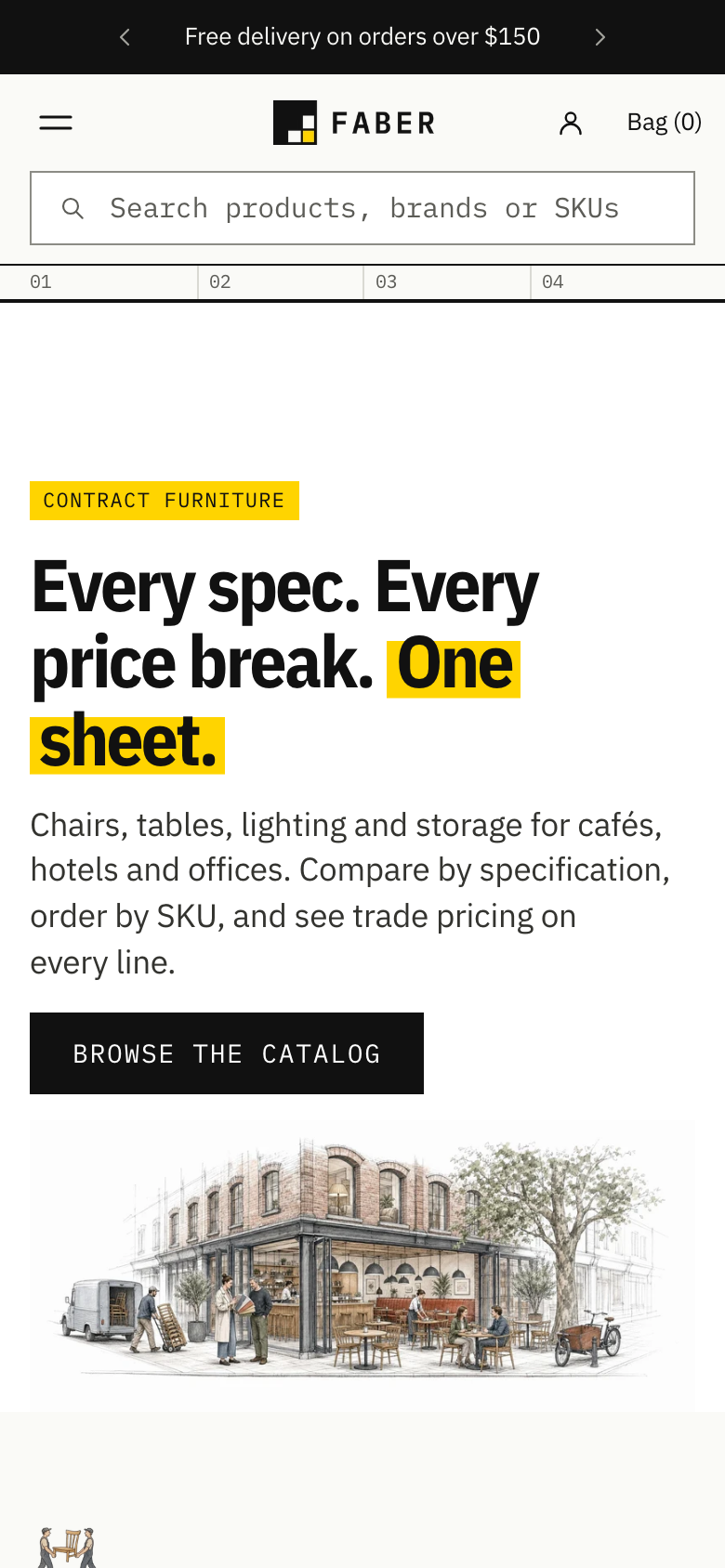
Faber is a Shopify theme for specialist and trade retailers with large, spec-heavy catalogs: contract furniture, hospitality and kitchen supply, lighting, hardware and tools. Its buyers compare specifications, order in quantity and come back to reorder, so Faber makes the store read like a manufacturer’s datasheet: every spec and every price break on one sheet.
It looks like a working document on purpose. Ink on paper, one highlighter color, square edges, ruled lines instead of floating cards, and a separate data font for SKUs, prices and measurements so numbers line up in columns.
Highlights
| What | Why it helps |
|---|---|
| List view for collections | Products appear as rows with SKU, up to three specification columns, price and a quantity field, so buyers compare across rows and add several products at once. Sort by item, price or a spec column. A photo grid is one click away. |
| The product page as a datasheet | A title block, a ruled price-break table, a specification sheet, a measured dimension drawing from your metafields (with a mm/in switch), documents, certifications, parts and a print-ready datasheet. |
| Trade and B2B buying | Quick order by SKU, a paste-a-list order pad, saved order lists, a wholesale product template with a variant matrix, prices for logged-in or B2B buyers only, and a company picker for B2B customers. |
| A cart that works like a quote | Volume price hints on each line, discount codes, a delivery estimate, PO number and requested delivery date, a minimum order, Print quote and Reorder last order. |
| One sheet from top to bottom | The header is a drawing’s title block with a numbered column ruler. Section headings, card grids, figures and the footer carry the same ruled cells, so the store reads as one document. |
| One highlighter | A single bright color marks what matters: the best price break, the active filter, the row you are on, the button under the pointer. It always sits behind ink, never as text color, so it stays readable. |
| Product compare | Shoppers tick up to four products and compare price, brand, options and your own specifications side by side, with the rows that differ marked. |
| Quiet motion | Nothing waits for an animation by default. Movement is used for state: drawers, the highlighter sweep on hover, row selection. |
Who this manual is for
This manual is for store owners and their teams. You do not need to know any code. Every setting is described with the exact name you see in the theme editor, so you can follow along step by step.
If you are a developer, the Reference part at the end lists every section, block and theme setting with its options and defaults.
How this manual is organized
| Part | What you will find |
|---|---|
| Getting started | Installing the theme, a 12-step setup checklist, how the theme editor works, and the Faber preset. |
| Store-wide design | Logo, colors and the highlighter, the three fonts, buttons, the drawing sheet and motion. |
| Header and footer | Announcement bar, the title block header, menus, search, mobile navigation and footer. |
| Building pages | How sections and blocks work, and every content section you can use. |
| Products | The datasheet product page, swatches, product cards, quick view, compare and the metafields Faber reads. |
| Collections and search | List view, filters, the all collections page and search. |
| Cart | Cart drawer, popup notification, cart page and the quote tools. |
| Trade buying | Trade prices, quick order and order lists, and the wholesale product page. |
| Overlays | Cookie consent banner and newsletter popup. |
| Selling internationally | Country, language and currency selectors and what your store needs for them. |
| Help | Accessibility, speed, troubleshooting, FAQ and support. |
| Reference | Complete tables of every setting, generated from the theme itself. |
New to Faber? Start with Set up your store in 12 steps. It takes you from a fresh install to launch, and links to the detailed page for each step.
Getting help
- Most questions are answered in Troubleshooting and the FAQ.
- If you are still stuck, see Getting support for what to include in your message so we can help quickly.