Page templates: About, Trade, FAQ, Stores and more
Faber includes ready-made page templates for the pages a trade supplier needs. Each template is already filled with sections and demo copy that you edit in the theme editor, so a new page takes minutes. The demo copy is written for a contract furniture supplier; replace every figure, price break, lead time and policy with your own before you publish.
| Template | Built from | Use it for |
|---|---|---|
| page.about | Content (intro), Content (story), Content (numbers), Timeline, Image gallery, Content (values), Content (team), Logo list, Content (call to action) | Your story, track record, values, team and the clients you supply. |
| page.wholesale | Content (hero), Content (price tiers), Content (benefits), Form, Content (FAQ) | Your trade program, with an application form. |
| page.trade-account | Content (intro), Form, Timeline, Content (benefits), Content (FAQ) | A trade account application page on its own. |
| page.samples | Content (hero), Content (sample kinds), Timeline, Featured product, Content (FAQ) | Finish and fabric samples, with the swatch product to order. |
| page.shipping | Page content, Content (delivery options), Content (lead times), Timeline, Content (FAQ) | Delivery options, lead times and how returns work. |
| page.faq | Page content, six Content (FAQ) sections, Content (call to action) | A full questions page, grouped by topic. |
| page.size-guide | Page content, Content sections with Table blocks, Content (how to measure), Content (call to action) | Sizing tables: seats per table, heights, clearances. |
| page.lookbook | Shop the look | Finished projects with shoppable hotspots. |
| page.stores | Store locator | Your showrooms and trade counters with a map, hours and services. |
| page.contact | Contact form | Your contact page. |
| page.compare | Product compare | The product comparison table. |
| page.quick-order | Content, Quick order | The order pad for repeat and trade buyers. |
| page (default) | Page content | Any other page. |
Create a page and assign a template
- In Shopify admin, go to Online Store › Pages and click Add page.
- Enter a Title, for example “Trade account”. The page content field can stay empty for templates that build the page from sections. The default, faq, shipping and size-guide templates start with Page content, which shows what you write here.
- In the Theme template box on the right, choose the template, for example trade-account.
- Click Save.
- Add the page to a menu in Online Store › Navigation so buyers can find it, for example in the footer or a title block cell.
Then edit its sections: in Online Store › Themes › Customize, use the page selector at the top to open Pages and choose the template (for example trade-account), or click through to the page in the preview.
Editing a template changes every page that uses it. To have two different About-style pages, create a new template from the editor’s page selector (Create template, based on the about template) and assign it to the second page.
About page
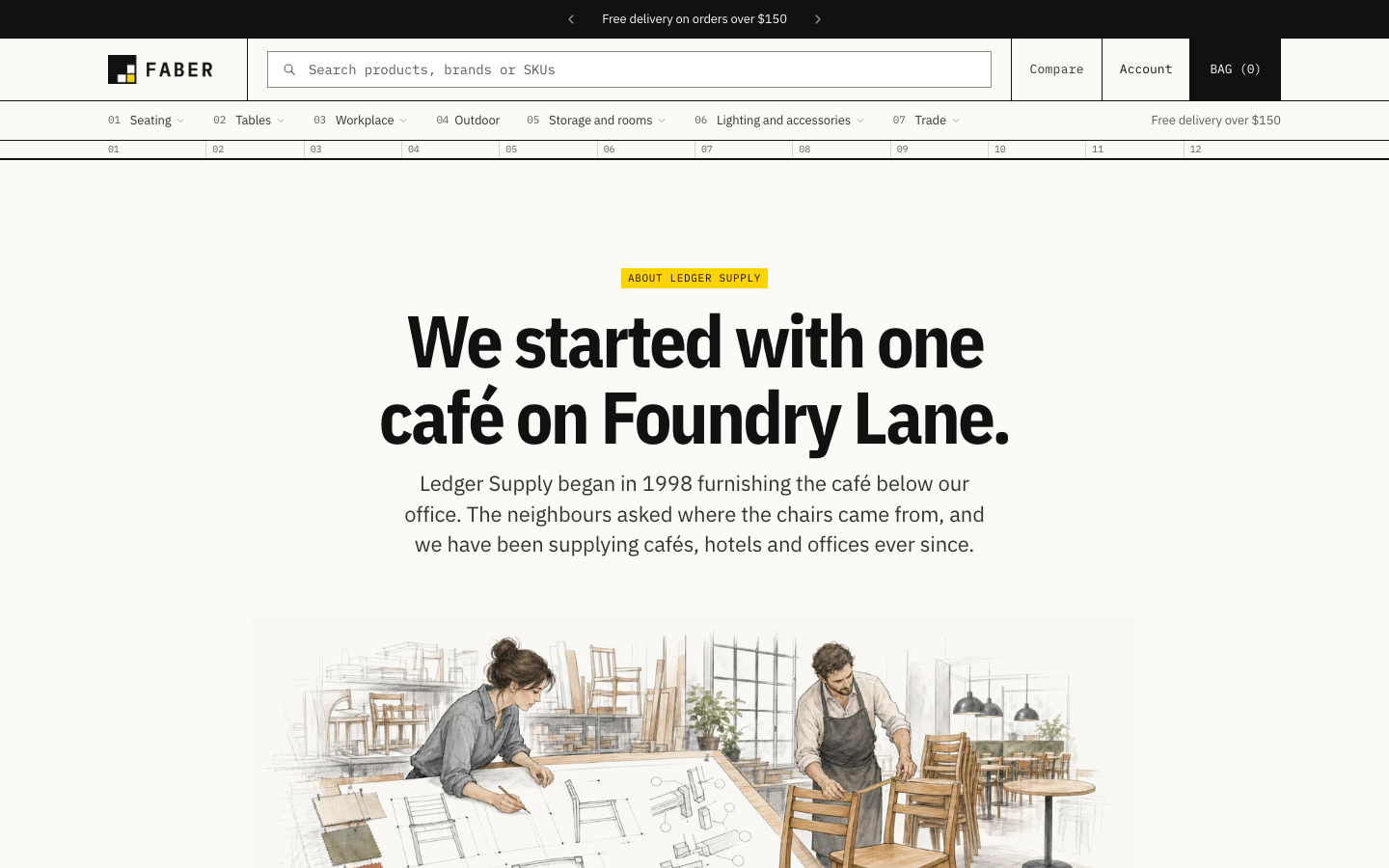
An intro with your headline and a wide image, your story, a row of numbers (for example trade accounts served, pieces in stock, dispatch time, projects completed), a Timeline of milestones in the Simple list layout, a gallery, your values, the team, a Logo list of clients you furnish and a call to action to open a trade account. Replace the placeholder text and images with your own, and only show numbers you can stand behind.
Wholesale page
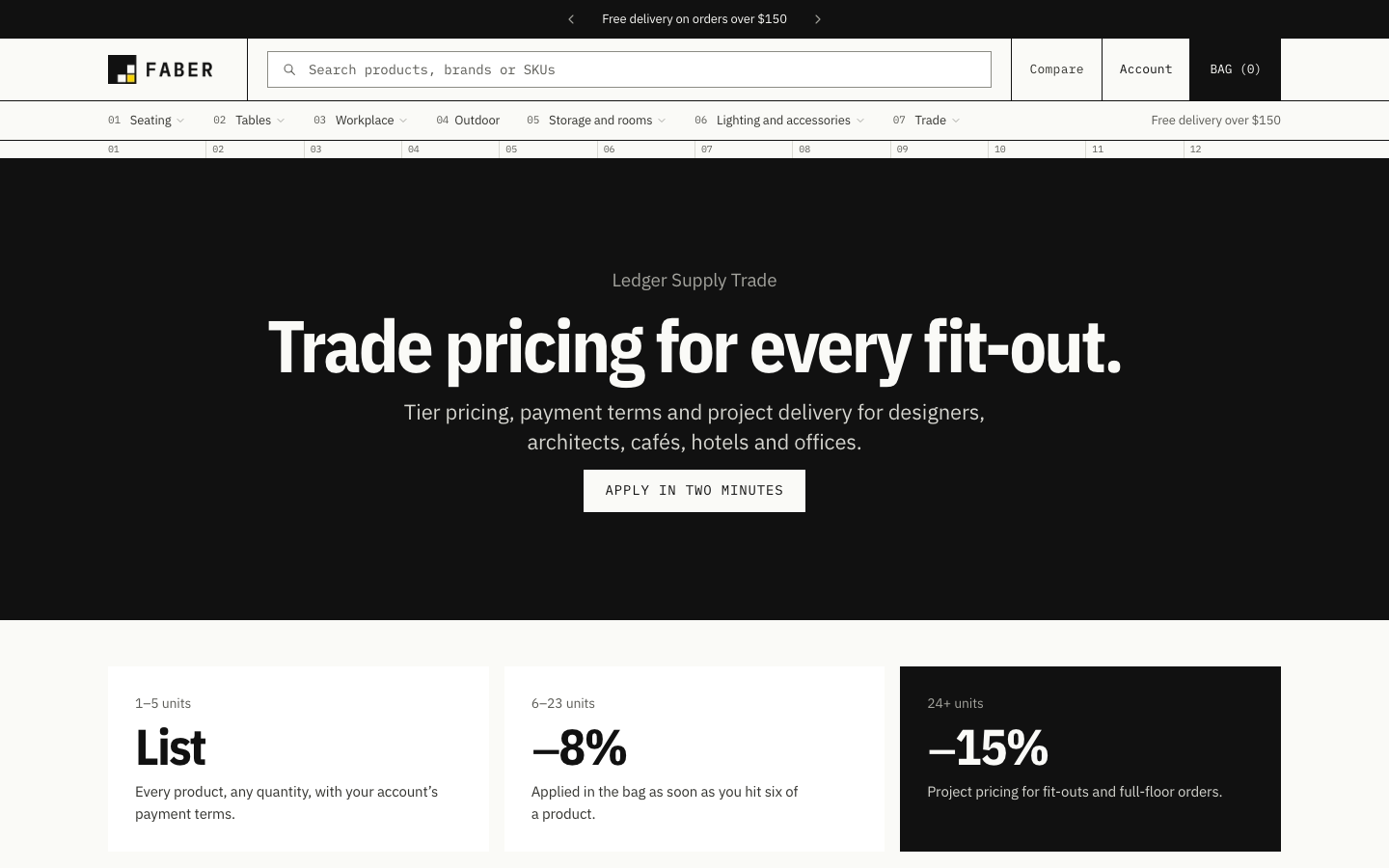
A hero with an Apply in two minutes button, your price tiers (for example list price for 1–5 units, −8 % from 6 units, −15 % from 24), the benefits of a trade account, an application Form and an FAQ. The form’s answers arrive by email. Edit the fields in the Form section: each Field block has a Label, Type, Placeholder, Required and Width on large screens. Keep exactly one Email field.
The tiers on this page are text: they don’t set prices. Real trade prices, quantity rules and price breaks come from Shopify B2B catalogs, and the theme shows them on product pages, in the list view, the cart and the Quick order and Volume pricing calculator sections. See Trade and B2B.
Trade account page
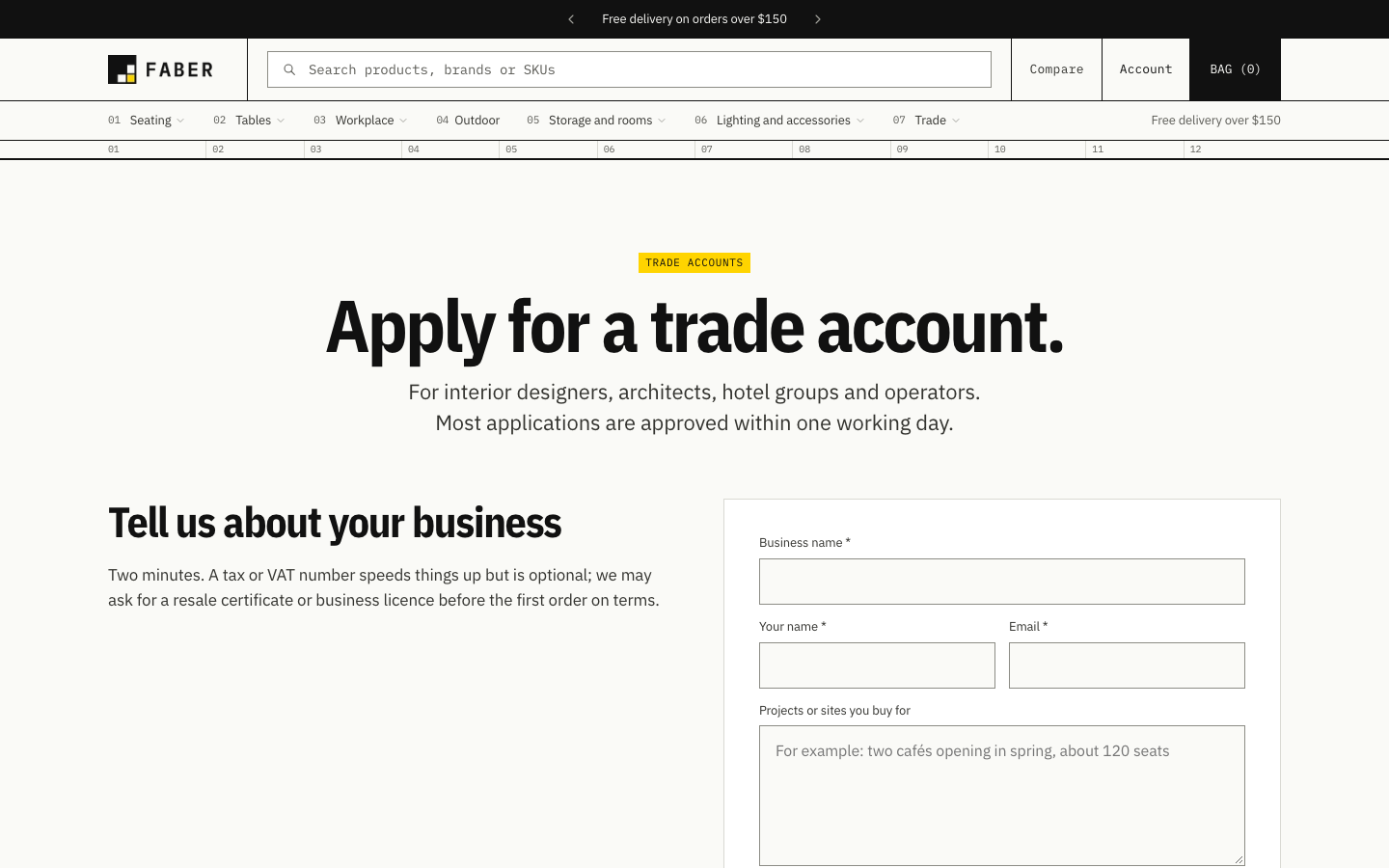
A page just for the application: an intro on who qualifies, the Form (“Tell us about your business”, with fields such as business name, tax or VAT number, business type and typical order size), a Timeline of what happens next, the benefits and the application FAQ.
Set this page as Theme settings › Trade (B2B) › Trade account application page. The theme then links to it in the header for visitors who are not logged in, next to hidden prices, and in the empty bag. See Trade and B2B.
Samples page
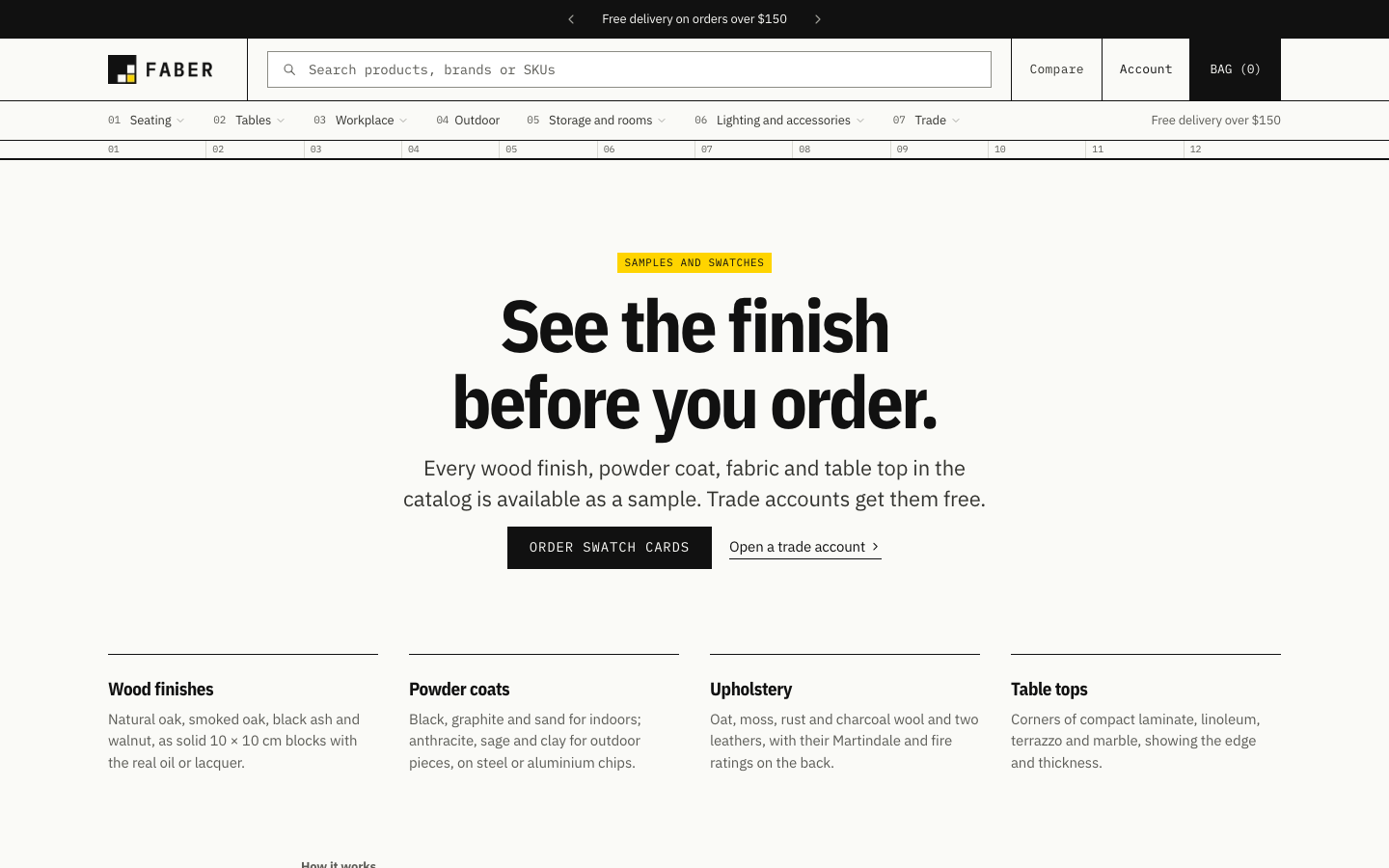
A hero with Order swatch cards and Open a trade account buttons, the kinds of samples you send (wood finishes, powder coats, fabrics), a three-step Timeline, a Featured product with your swatch card product so buyers can order samples on the page, and a samples FAQ. Choose your own sample product in the Featured product section’s Product setting.
Shipping page
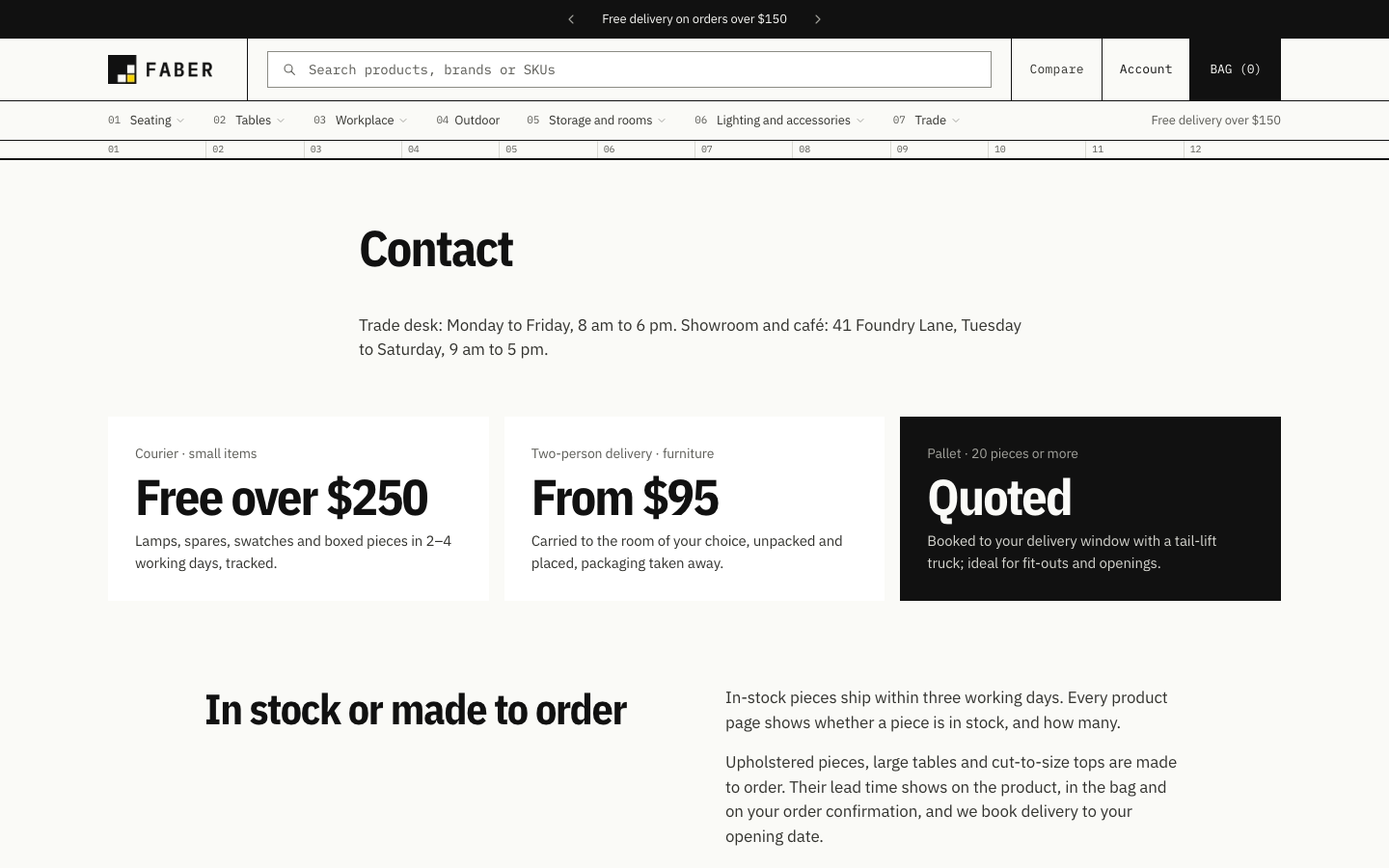
Your shipping text from Online Store › Pages at the top, then your delivery options side by side (for example courier, two-person delivery, pallet), lead times for stock and made-to-order pieces, a Timeline of how returns work and a delivery FAQ. Make sure every price and time matches your shipping rates in Settings › Shipping and delivery and your policies.
FAQ page
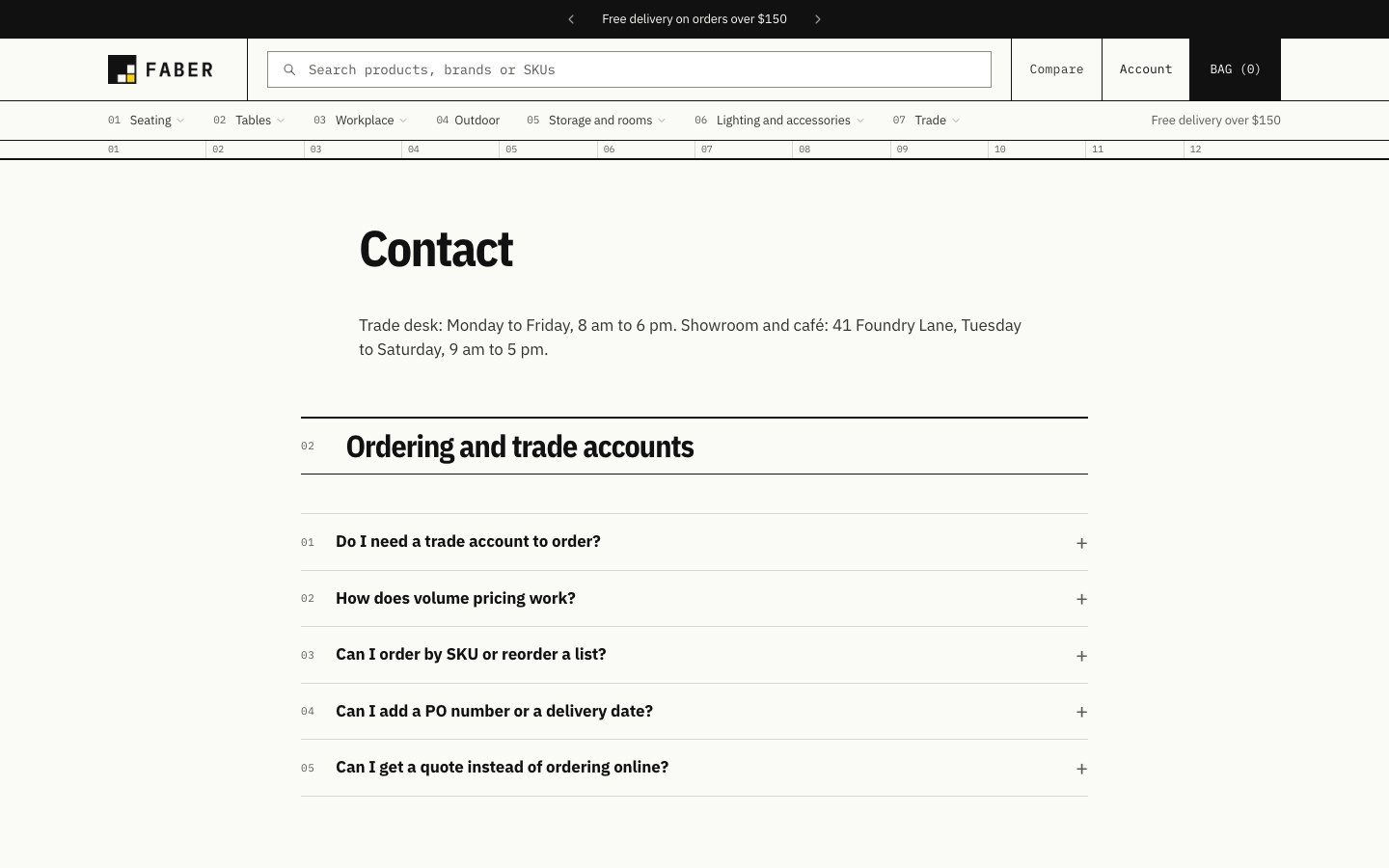
Your introduction from Online Store › Pages, then six FAQ sections: Ordering and trade accounts, Products, specs and testing, Samples and finishes, Delivery and installation, Returns, warranty and care, and Payment and invoices. Each heading is a numbered title block, and the questions are numbered collapsible rows. A closing “Still have a question?” links to your contact page.
To add a question, select an FAQ section, click Add block › Collapsible row, enter the question as its Heading and add a Text block inside it for the answer. Several demo answers link to other pages (trade account, quick order, samples, shipping); update those links if your pages have other names.
Size guide page
A store-wide sizing page: your introduction, then Table blocks for how many people each table size seats, seat and table heights, and clearances and walkways, followed by numbered “How to measure” notes and a call to action. Edit each table in its Table block. For a guide to the sizes of one product with an add to bag button, use the Size guide section instead, see Home page and content sections.
Lookbook page
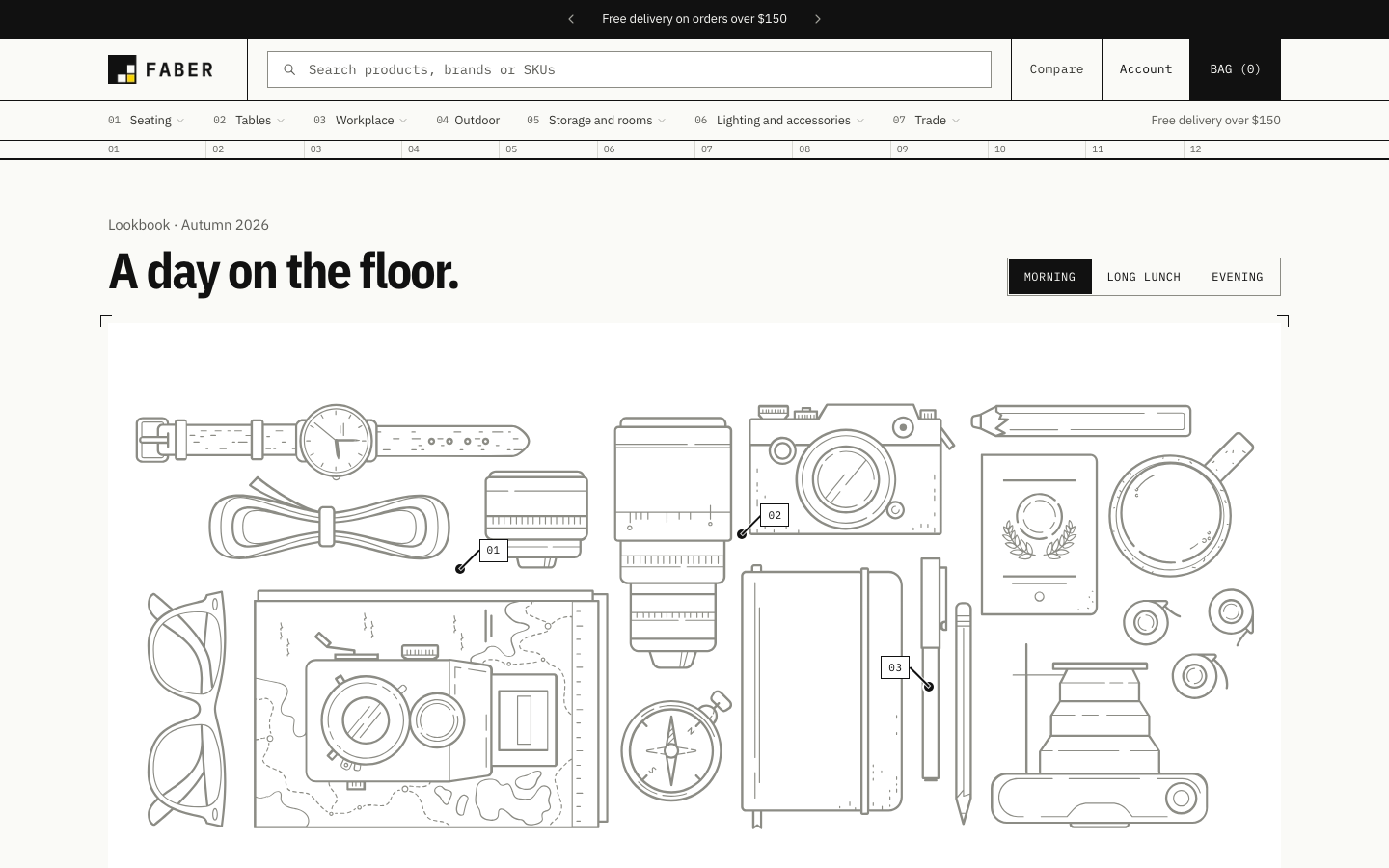
A single Shop the look section in the Story below image layout, with the Large page heading size. Add one Look block per project or scene; with more than one look, tabs and previous/next buttons appear. In each look, add Hotspot blocks, choose a product and set the pin’s Horizontal position and Vertical position. See Shop the look.
Stores page
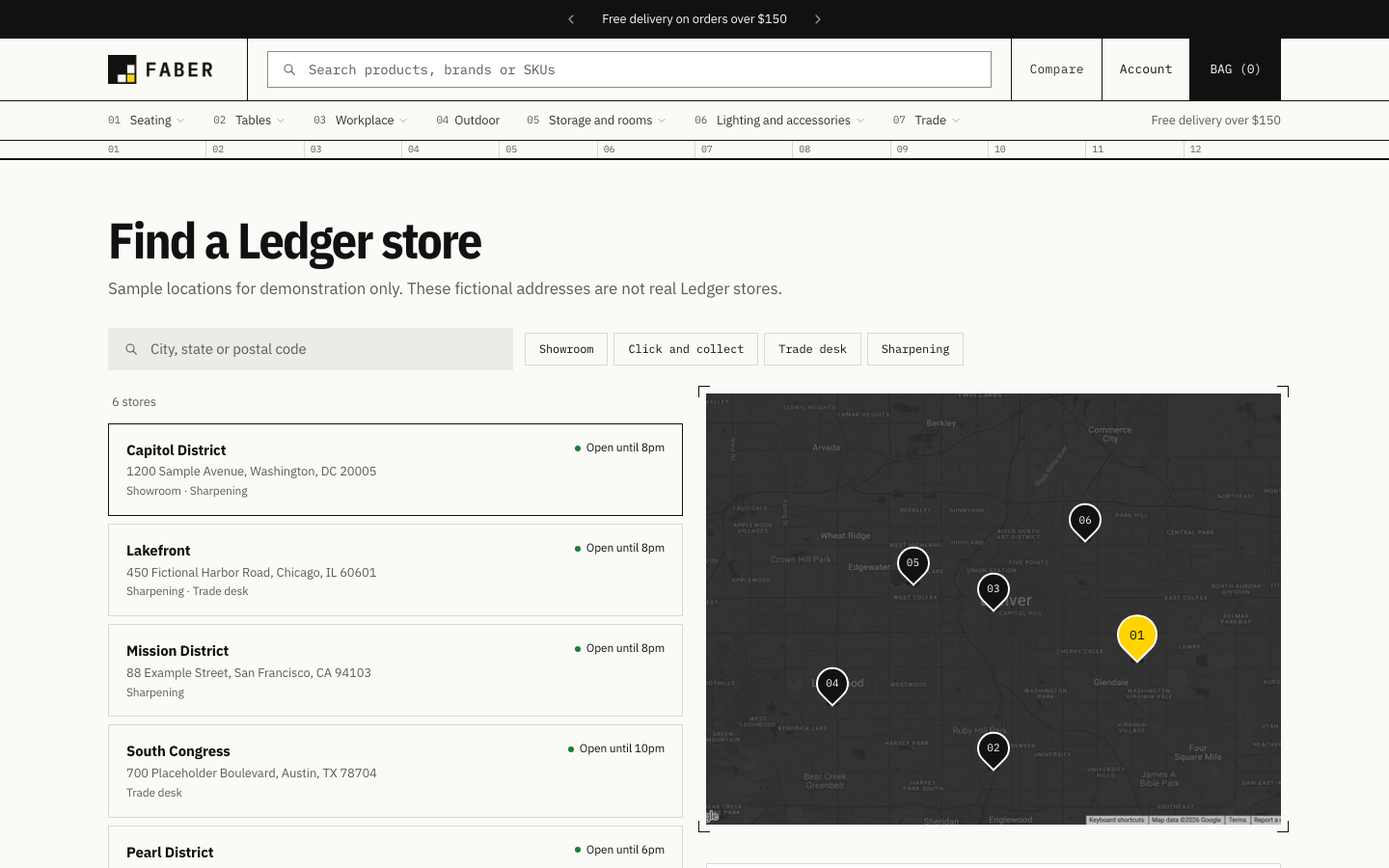
A Store locator in the Searchable store finder layout. Upload a map of your region as the Map image, enter the services you offer as Service filters (comma-separated, for example “Trade counter, Showroom, Click and collect”), then add a Store block per location with its address, phone, Status, Opening hours, Services and pin position. Buyers can search by store name or any part of the address (such as city or postal code), filter by service, and pick a store to see its details beside the map.
Keep Status and Opening hours up to date, especially around holidays.
Contact page
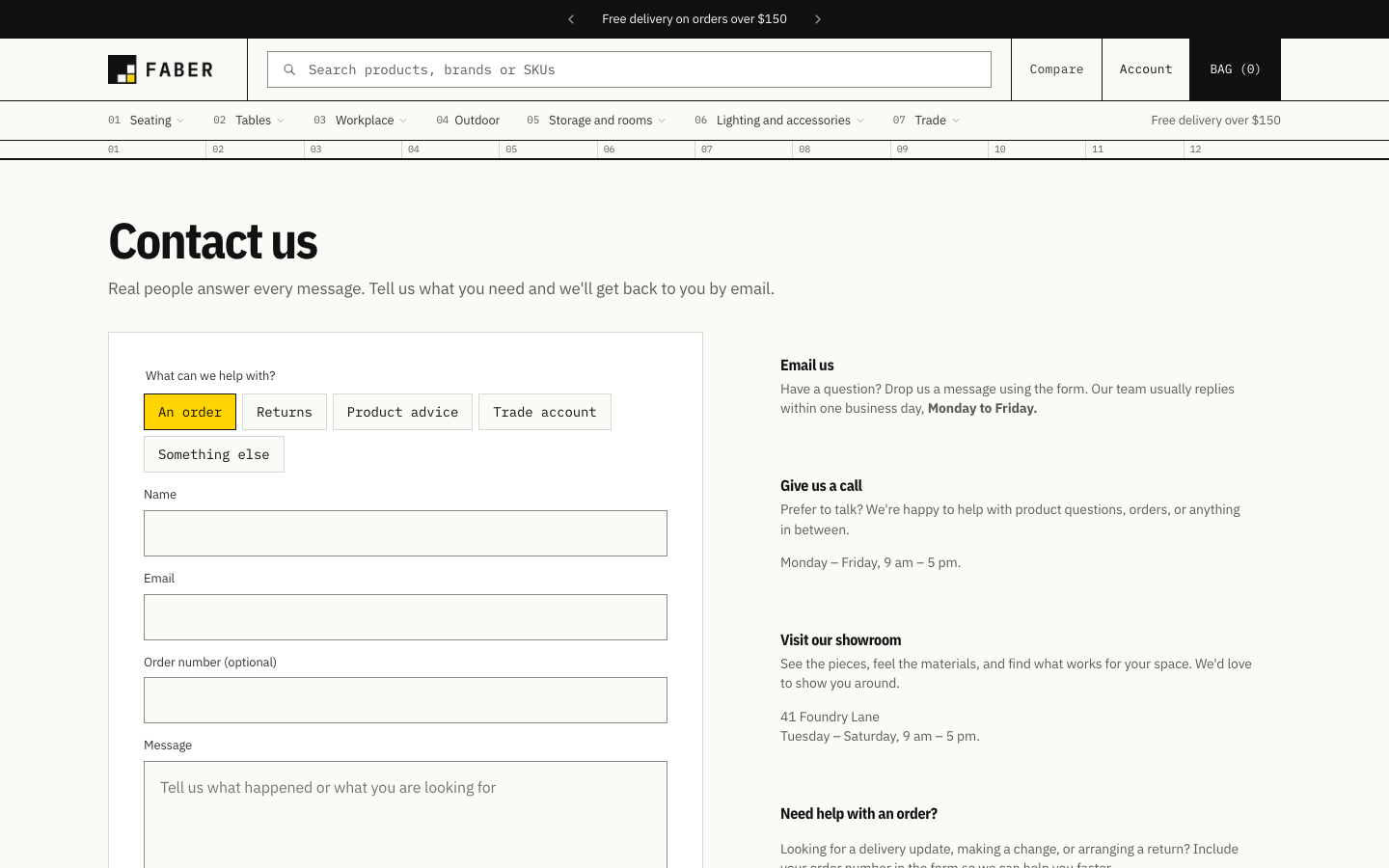
The Contact form section:
| Setting | What it does |
|---|---|
| Heading / Text | The heading and an introduction. |
| Topics | One topic per line (default: An order, Returns, Product advice, Something else). Shoppers pick one and it is included in the email you receive. Leave empty to hide. Add “A quote” or “Trade account” if buyers often ask. |
| Show order number field | On by default. |
| Show phone field | Off by default. |
| Message after sending | The confirmation shown after sending. |
You can add theme blocks and app blocks beside the form, for example your trade desk’s phone and hours. The Faber template has three groups there. Messages are sent to your store’s email address from Settings › Store details.
Compare page
The Product compare section on the page.compare template shows the products shoppers selected side by side. Set Heading (leave empty to use the page title) and Collection for the browse button. Choose which specification rows appear in Theme settings › Product compare. See Product compare.
Quick order page
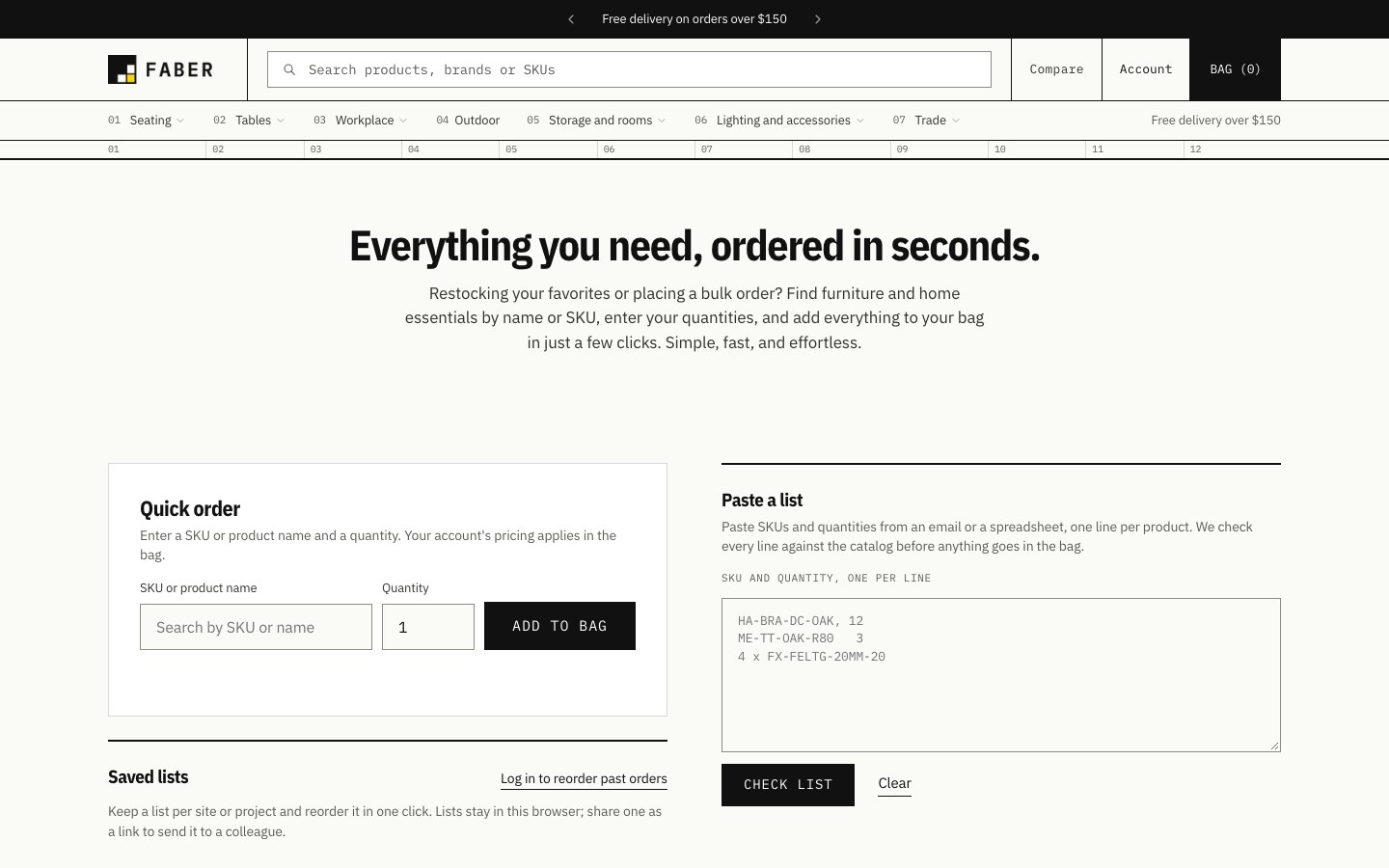
A short heading, then the Quick order section with the SKU search form, the Paste a list pad and saved lists. Choose this page in Theme settings › Cart › Order lists page: the bag then offers Save bag as list, saved lists open on this page, and the empty bag links to its paste pad. See Quick order and saved lists.
Default page

The Page content section shows the content you write in Online Store › Pages. Settings: Show page heading, Center page heading and Content width (Narrow, Wide or Page width). You can add more sections below it.