Newsletter popup
The newsletter popup invites visitors to join your email list. It is built to stay out of a buyer’s way: it never opens on a timer the moment someone arrives, it waits until the cookie banner is out of the way, and it stays away for days once it has been shown.
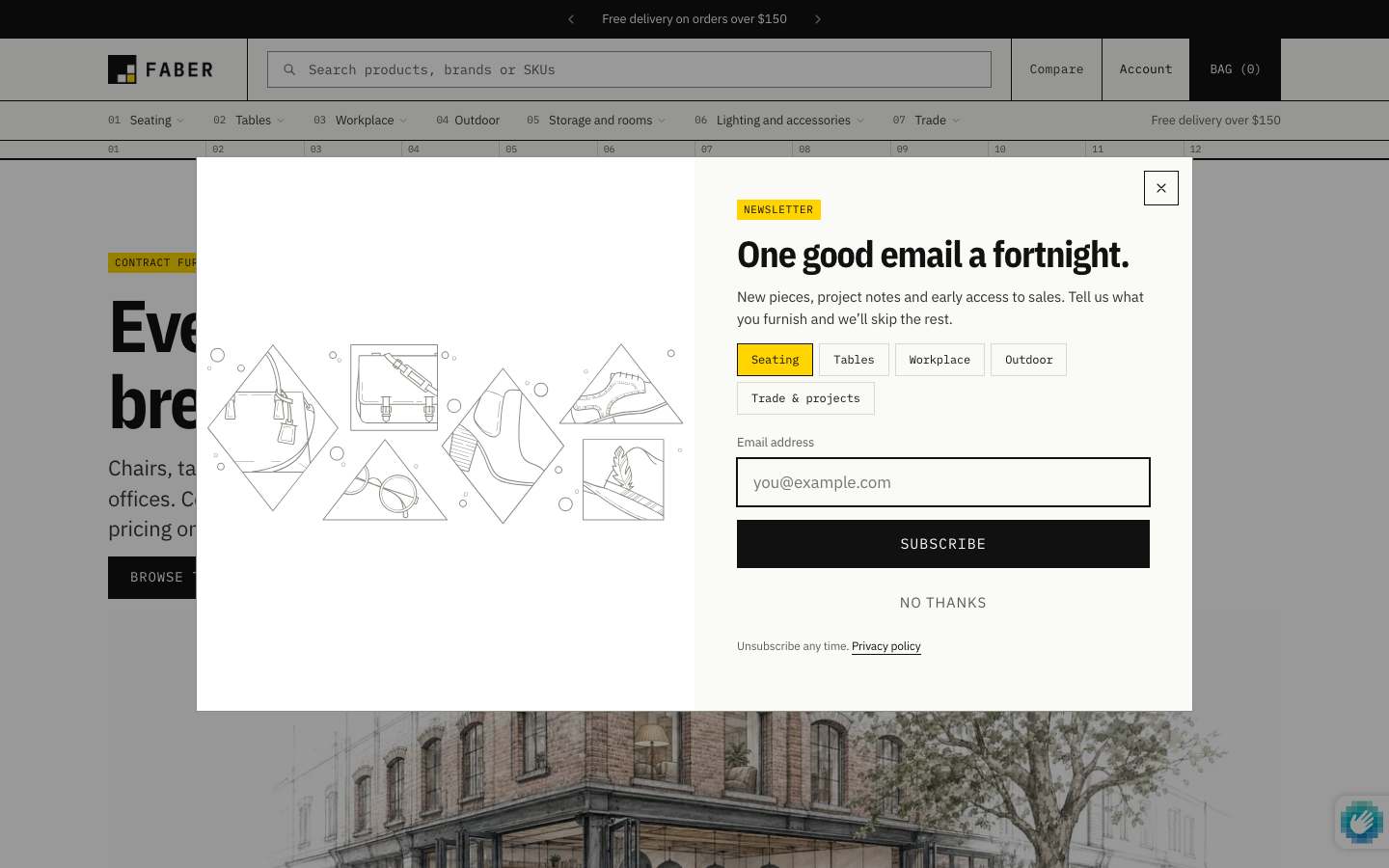
Subscribers are added to Customers in Shopify admin with email marketing consent, so you can email them with Shopify Email or any app that reads Shopify customers.
Trade buyers come to reorder, not to be interrupted. If most of your traffic is repeat business, the newsletter in the footer is usually enough, which is why the popup ships hidden.
Where to edit it
- Go to Online Store › Themes › Customize.
- In the left sidebar, scroll to Overlays and click Newsletter popup. Selecting it opens the popup in the preview so you can see your changes; clicking elsewhere closes it.
The Faber preset includes the popup in the Overlays group, hidden, because trade buyers come to reorder (see above). To turn it on, click the eye icon next to Newsletter popup in the Overlays group. If it’s not listed, click Add section in the Overlays group and choose Newsletter popup. Only one can be added. To turn it off again, hide the section with the eye icon.
When it opens
| Setting | What it does |
|---|---|
| Open | After cookie choice, else on scroll or exit (default) or On scroll past half the page or exit. |
| Show again after | Days before a visitor who has seen the popup sees it again, 1–30. Counted from the last time it appeared. Default: 7. |
How the two Open options behave:
- After cookie choice, else on scroll or exit: if the cookie banner is showing, the popup opens 1.4 seconds after the visitor makes their cookie choice. If no cookie banner is needed for that visitor, it waits for engagement instead (below).
- On scroll past half the page or exit: the popup opens when the visitor scrolls past the middle of the page, or moves the pointer out through the top of the window (as if to leave).
The popup also:
- Never opens on top of another open dialog, such as the cart drawer, the mobile menu or the cookie preferences. It waits until they close.
- Never opens again for a visitor who has signed up, or for a signed-in customer who already accepts email marketing.
- Never opens by itself in the theme editor.
Show again after counts from the last time the popup was shown to that visitor, on that device and browser, whether or not they closed it.
Content
| Setting | What it does |
|---|---|
| Layout | Image and form (default): an image beside the form. Centered form: the form alone, centered. |
| Image | The image for the Image and form layout. |
| Eyebrow | Small text above the heading. Default “Newsletter”. |
| Heading | Default “One good email a fortnight.” |
| Text | A short description of what subscribers get. |
| Interests | Comma-separated topics shown as chips. Default Seating, Tables, Workplace, Outdoor, Trade & projects. Leave blank to hide. |
| Button label | Default “Subscribe”. |
| Small print | A line under the form, for example “Unsubscribe any time.” |
| Privacy link | Defaults to your store’s privacy policy. |
| Color scheme | Colors for the popup. |
Interests and customer tags
Every subscriber gets the customer tag newsletter. Each interest they pick adds a tag made from the interest name, for example interest-seating or interest-trade-projects. The first interest is selected by default. Use the tags to build segments in Customers and send emails people actually want, for example new outdoor ranges only to buyers who furnish terraces.
After signing up
| Setting | What it does |
|---|---|
| Heading | The success heading. Default “You’re on the list.” |
| Text | The success message. |
| Discount code | Optional. Shown with a Copy button. Leave blank to show no code. |
| Close button label | Default “Start shopping”. |
The popup only displays the code; it doesn’t create it. Create the discount in Discounts first, with the exact same code, and mention the offer in the popup’s heading so visitors know what they get.
The email is checked before sending (empty or mistyped addresses get a clear message), and after a successful signup the popup shows the success state. Visitors can close the popup with No thanks, the close button or Escape.
Tips
- Offer something specific in the heading: early access to new ranges, project notes or a trade price list.
- Keep Show again after at 7 days or more; showing the popup too often annoys visitors.
- On phones the email field isn’t focused automatically, so the keyboard doesn’t jump up over the page.
- Use an image with the subject away from the edges; it is cropped to fit.