Quick order, order pad and saved lists
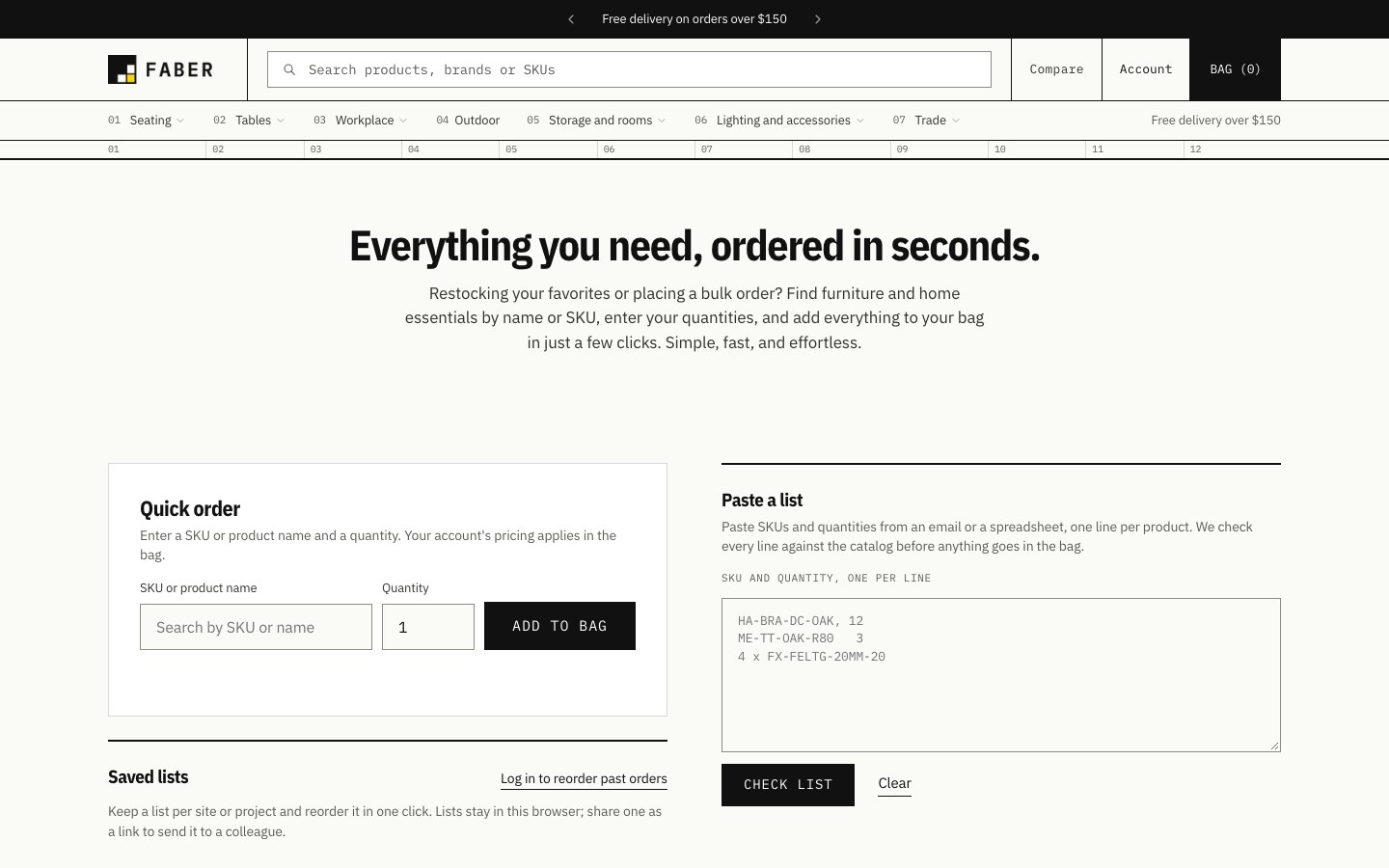
Trade buyers often know exactly what they want: a SKU, a quantity, and the same list as last month. The Quick order section gives them three tools on one page:
- a SKU form to find one product by SKU or name and add it,
- Paste a list, an order pad that takes many lines at once and checks every one against your catalog,
- Saved lists, named lists kept for each project or site that can be reordered in one click and shared as a link.
Set it up
- In Shopify admin go to Online Store › Pages › Add page. Title it “Quick order”, leave the content empty, and under Theme template choose quick-order. Save.
- In the theme editor, open Theme settings › Cart and choose the page in Order lists page. This turns on Save bag as list in the bag and the Paste a SKU list link in an empty bag.
- Open the page in the theme editor and adjust the Quick order section (below).
- Add the page to a menu, for example your header utility links or the footer, so buyers can find it.
The section works on any page, including the home page and the cart page, but saved lists and shared links open on the page you choose in Order lists page. Keep one page for them.
Quick order section settings
| Setting | Default | What it does |
|---|---|---|
| Heading | Quick order | On a page of its own, the heading is the page title. |
| Text | Enter a SKU or product name and a quantity. | A short line under the heading. |
| Shortcut heading | Frequent SKUs | The label in front of the shortcut chips. |
| Shortcut products | — | Up to 8 products shown as chips (the SKU, or the title when there is none). A chip fills the SKU form with that product. |
| Show Paste a list | On | Shows the order pad. |
| Show saved lists | On | Shows the buyer’s saved lists and the link to past orders. |
| Layout | Two columns | Two columns: form and lists beside the paste pad puts the SKU form and saved lists on the left and the pad on the right on large screens. Stacked puts them one under the other. Phones always stack them. |
| Color scheme, Top padding, Bottom padding | Section look and spacing. |
Search uses product titles, vendors, types and variant SKUs. Prices in the bag follow the customer’s own pricing, including B2B catalogs.
The SKU form
Buyers type a SKU or product name. Matching products drop down as they type; choosing one shows an Option menu when the product has variants. They enter a Quantity and press Add to bag. A message confirms what was added, or says when nothing matches or a variant is sold out.
Paste a list
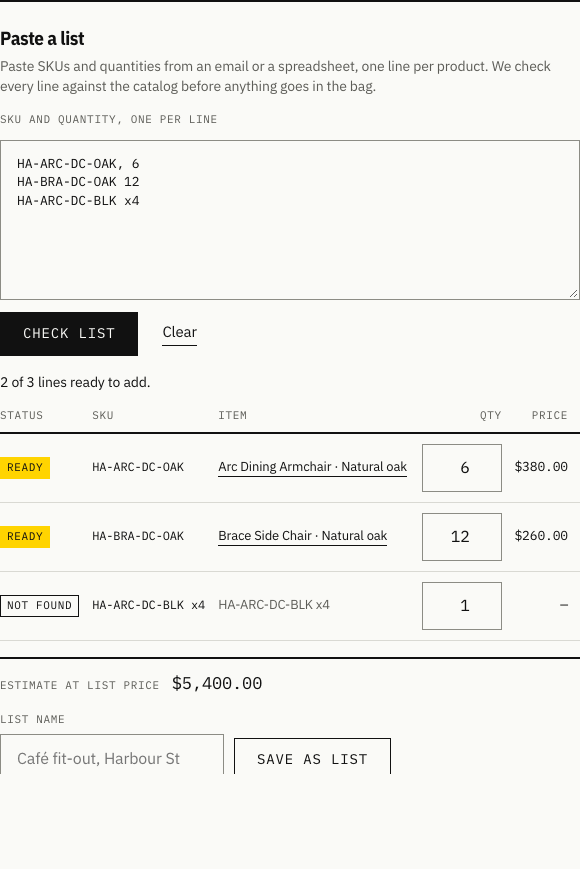
Buyers paste lines from an email, a purchase order or a spreadsheet into SKU and quantity, one per line, then press Check list. Each line is a SKU (or exact product name) and a quantity. All of these work:
| Line | Read as |
|---|---|
HA-BRA-DC-OAK, 12 | 12 of HA-BRA-DC-OAK |
HA-BRA-DC-OAK then a tab, then 12 (copied from a spreadsheet) | 12 |
HA-BRA-DC-OAK; 12 or HA-BRA-DC-OAK 12 | 12 |
4 x HA-BRA-DC-OAK | 4 |
HA-BRA-DC-OAK | 1 |
The same SKU on two lines is added together. Up to 100 lines are read at a time.
Every line is checked against your catalog before anything goes in the bag. The results table shows each line’s Status, SKU, item, quantity and price:
| Status | Meaning |
|---|---|
| Ready | The SKU matched a variant that is in stock. Its quantity can still be changed. |
| Sold out | The SKU matched, but the variant can’t be bought now. It is left out. |
| Check | Several products match and none has this exact SKU. The line lists up to three of them (“Several matches: …”) so the buyer can fix the SKU. |
| Not found | Nothing in the catalog matches. |
| Retry | The check didn’t finish (for example a dropped connection). Press Check list again. |
Quantities snap to the variant’s quantity rule from your B2B catalog. If a buyer asks for 10 of something sold in steps of 6 with a minimum of 6, the line becomes 12 with the note “Asked for 10; sold in steps, so 12.”
Below the table, Estimate at list price totals the ready lines. Add N lines to bag adds every ready line in one go; trade price breaks then apply in the bag. Save as list, with an optional List name, keeps the ready lines as a saved list. Clear empties the pad.
Matching uses your store’s search, so SKUs must be filled in on your variants. The estimate uses the prices the buyer sees; B2B price breaks and discounts are worked out in the bag.
Saved lists
Under Saved lists, each list shows its name, the date it was saved, and how many lines and units it holds. Buyers can:
- Add all to bag, to reorder the whole list,
- Edit in pad, which loads the list into Paste a list so they can change quantities before adding,
- Copy link, to share the list,
- Delete it.
Lists are created from the order pad (Save as list) or from the bag (Save bag as list, below). Beside the Saved lists heading, logged-in customers see Buy again from past orders, a link to their order history; guests see Log in to reorder past orders.
Where lists are kept
Saved lists are stored in the buyer’s browser, on that device. They need no account and no app, and nothing is stored in your admin. A list saved on a work computer won’t appear on the buyer’s phone, and clearing the browser’s site data removes it.
Sharing a list
Copy link copies a link to your order lists page with the list’s items in the address. Whoever opens it sees the list at the top of Saved lists, marked Shared with you, with Add all to bag and Save list to keep their own copy. This is how a site manager can send a colleague the order for a project.
A shared link only lists products and quantities. It doesn’t add anything to the bag or skip checkout, and the person opening it sees their own prices.
Save bag as list
When Theme settings › Cart › Order lists page is set and the bag has items, the cart drawer and cart page show Save bag as list. It saves everything in the bag as a list named “Order list” with today’s date, then shows Saved to your lists., which links to the order lists page.
The empty bag
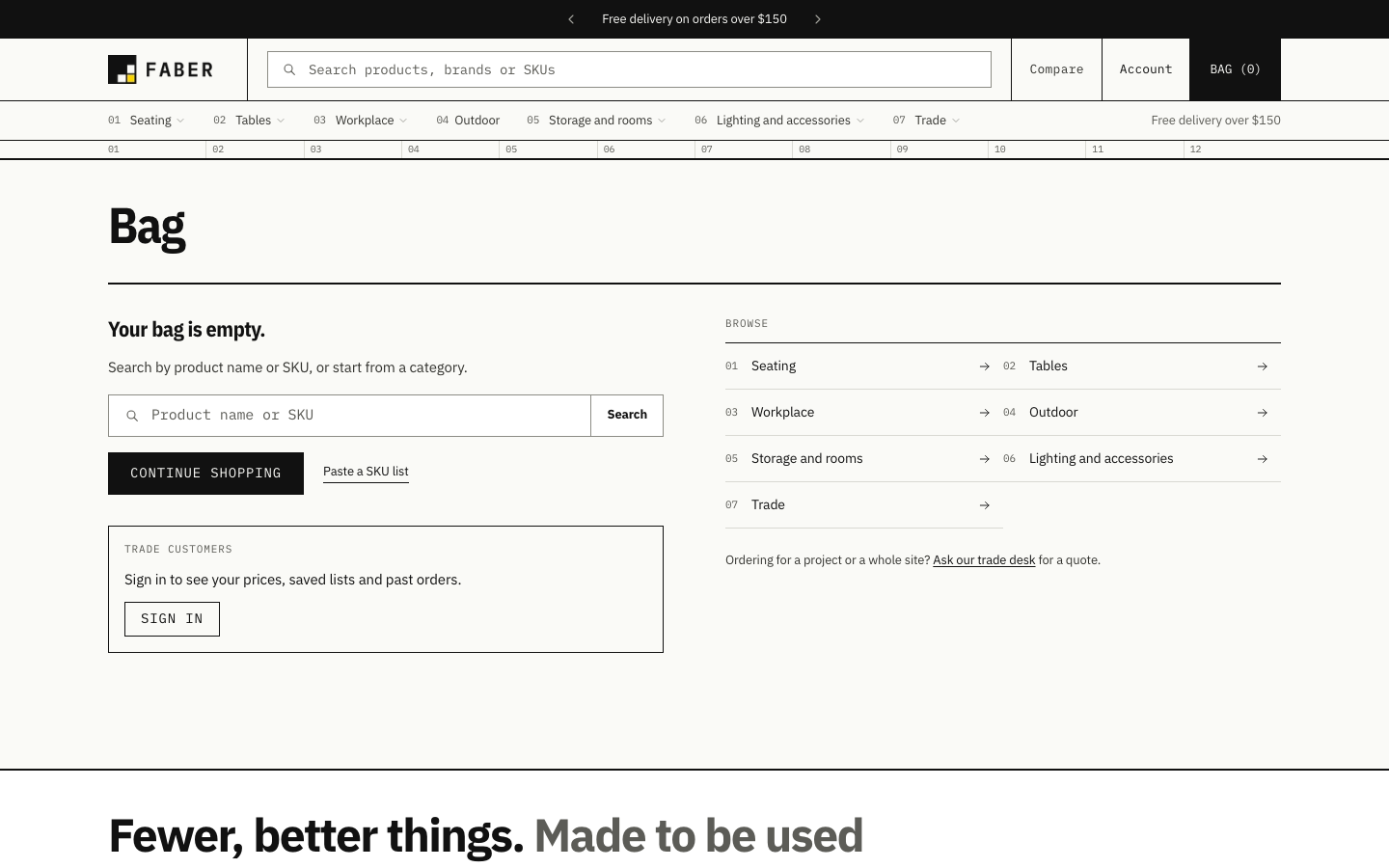
An empty cart drawer or cart page gives buyers somewhere to start instead of a single line of text:
- a search field for a product name or SKU, and Continue shopping,
- Paste a SKU list, linking to the order lists page (when Order lists page is set),
- the items of the customer’s last order with Add all to bag, for logged-in customers (Offer to reorder the last order),
- a Trade customers panel with Sign in and Apply for a trade account for guests (the second link needs Theme settings › Trade (B2B) › Trade account application page),
- the top-level links of a menu (Category links, default the main menu) and your own Help text.
The empty bag settings are under Theme settings › Cart › Empty bag. See Cart drawer, notification and cart page for the rest of the cart settings, and Trade accounts and B2B for hiding prices: when prices are hidden from a visitor, the Quick order section shows only its heading and a log-in link.