Blog and blog posts
For a trade supplier, the blog is where buying guides live: seat and table heights, which finish suits which venue, how to plan a café layout. The Faber demo calls its blog “Specifier notes”. Faber lays the blog out like the rest of the sheet: a featured newest post, tag filters, posts in a ruled grid, readable posts with reading time, and the products a post mentions at the end, ready to add to the bag.
Write posts in Shopify
- Go to Online Store › Blog posts and click Create blog post.
- Add a Title, the Content, an Excerpt (used on cards when Show excerpt is on) and a Featured image.
- Choose the Blog (for example “Specifier notes”) and add Tags. The first tag shows above the title as a category label.
- Set Visibility to visible and click Save.
The blog page
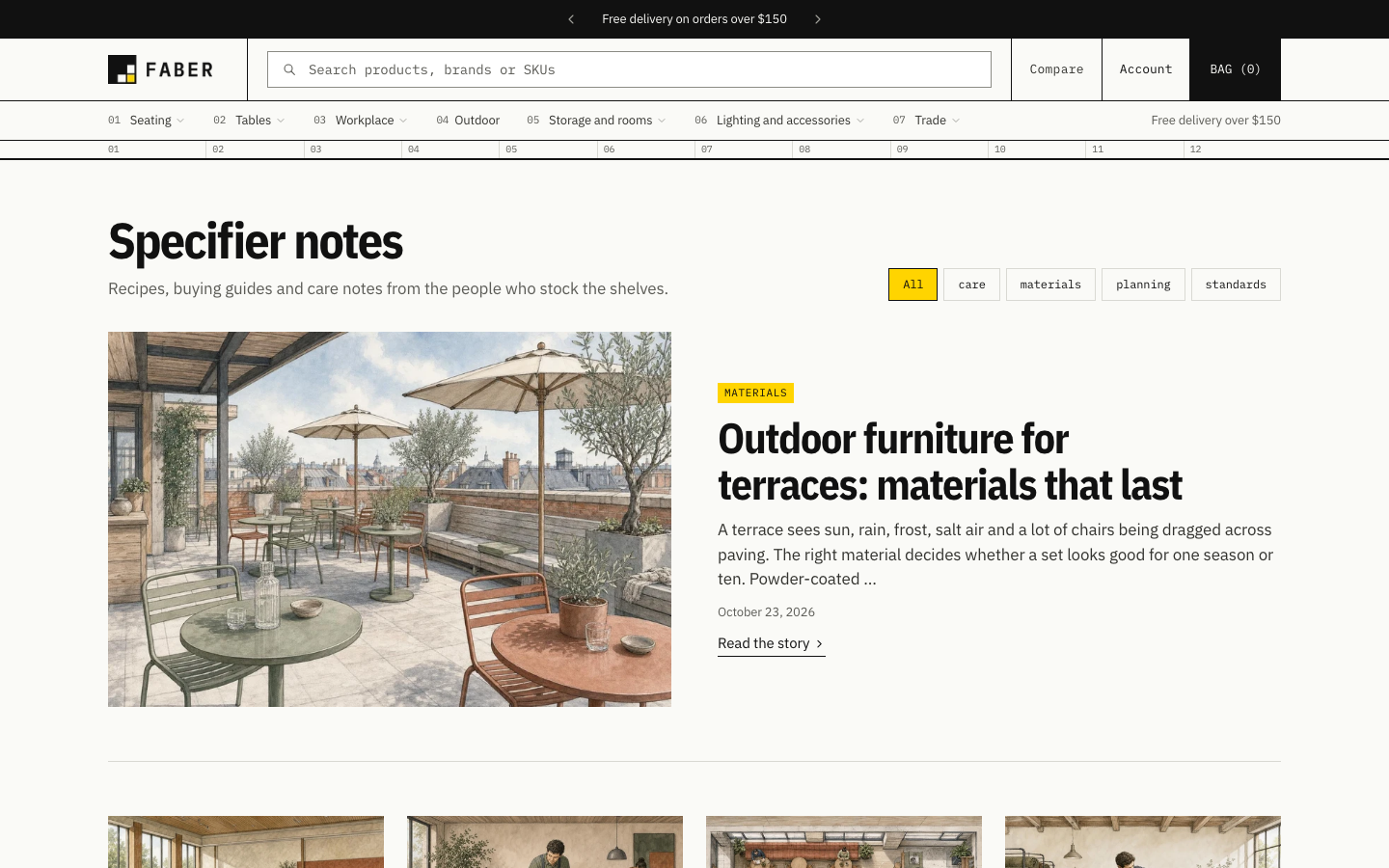
In the theme editor, open Blogs › Default blog from the page selector. The Blog section has these settings:
| Setting | What it does |
|---|---|
| Subheading | A short line under the blog title. |
| Show tag filters | Chips for every tag, so readers can filter posts (for example Planning, Materials, Care). On by default. |
| Feature the newest post | Shows the newest post large at the top of the first page. On by default. |
| Posts per page | 4–24. Default: 10. More posts are split across pages. |
Plus Color scheme, Top padding and Bottom padding.
With Theme settings › Layout › Ruled grids on, the post cards sit in one ruled grid with a number in each cell. Pointing at a post title sweeps the highlighter in behind it.
Blog posts
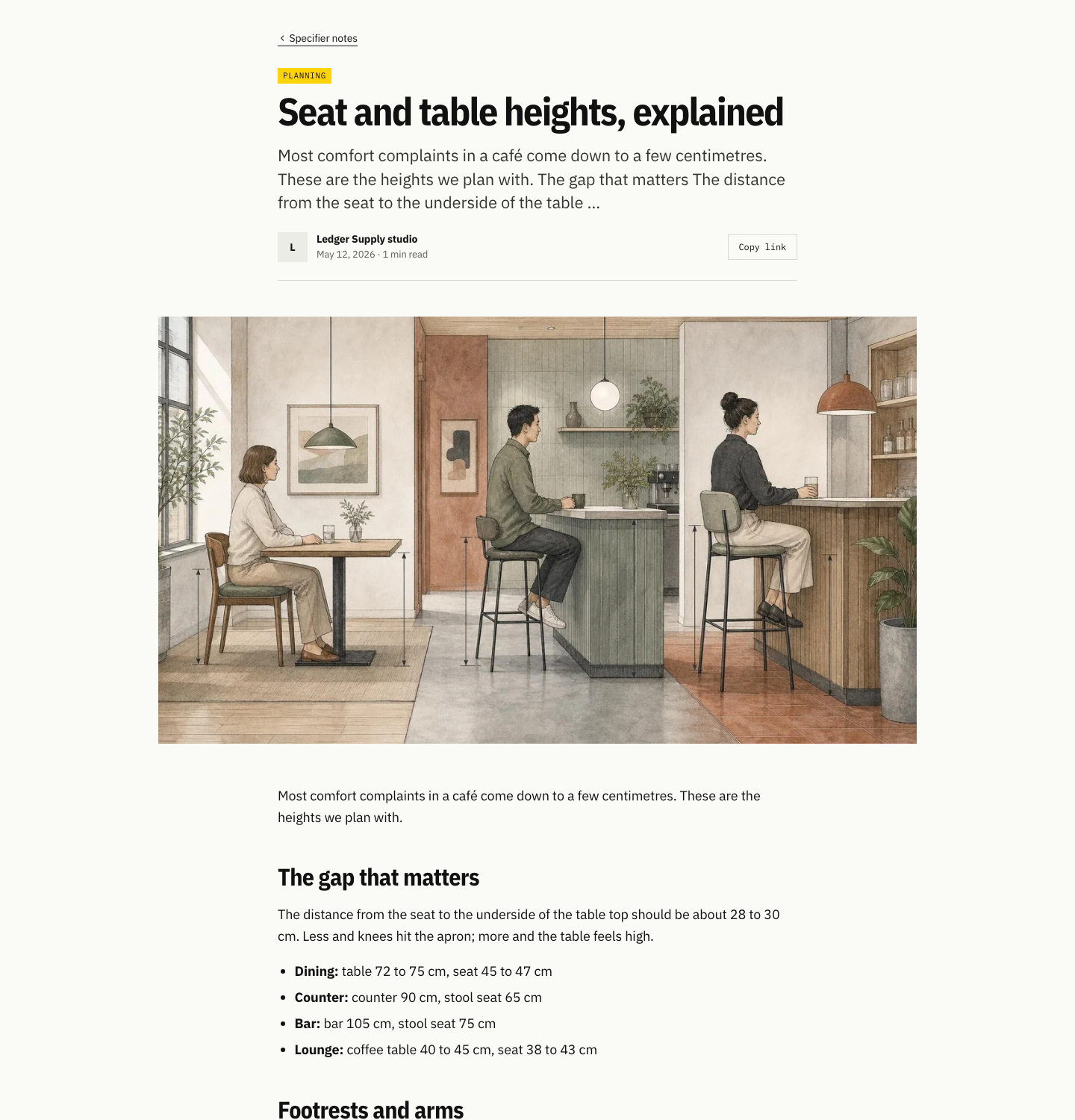
Each post shows its tag, title, author initial and name, date and an estimated reading time, then the featured image and content. Open Blog posts › Default blog post in the editor to change the Blog post section:
| Setting | What it does |
|---|---|
| Show featured image | On by default. |
| Show copy link button | A Copy link button beside the author. On by default. |
| Products heading | The heading above the products the post mentions (default “Used in this story”). |
| Show more posts | Shows more posts from the same blog at the end. On by default. |
When comments are turned on for the blog (in Online Store › Blog posts › Manage blogs), comments and a comment form appear below the post.
Add products to a post
A guide can end with a list of the products it mentions, each with its stock status and an add to bag button (or Choose options for products with options). A guide to seat heights, for example, can list the bar stools and counter stools it compares.
- In Shopify admin, go to Settings › Custom data › Blog posts and click Add definition.
- Name it “Related products”, with namespace and key
custom.related_products, and type Product, List of products. A single product reference also works. - Save. Open a blog post, scroll to Metafields and pick the products.
Up to eight products are shown.
Show the latest posts on other pages
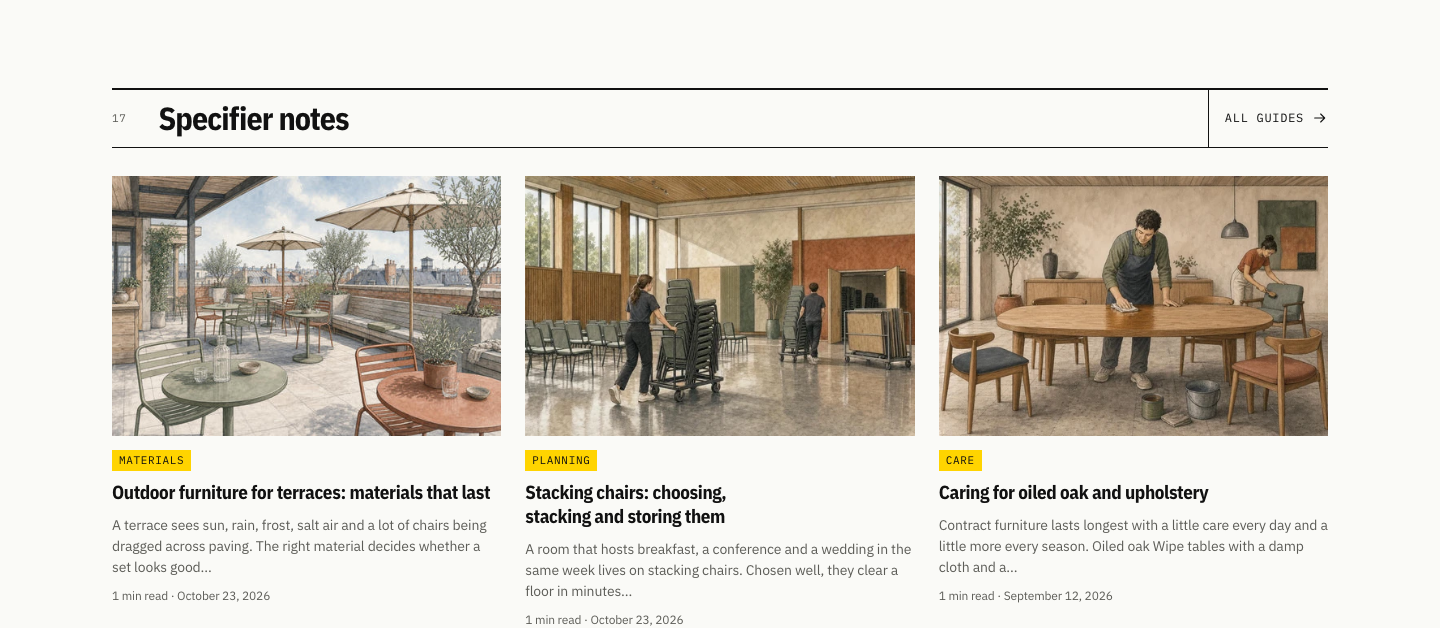
Add the Blog posts section to the home page or any template. Choose the Heading, Blog, Number of posts (2–6), Show excerpt and a Link label for the “all stories” link. With Title block headings on, the heading is a ruled strip with the section number and the link in its own cell.
Tips
- Write guides that answer the questions buyers ask your trade desk. Link to the products and to your size guide or samples page from the text.
- Use landscape featured images of the same shape across posts so cards line up. Drawings work as well as photos.
- Write a real excerpt; otherwise the start of the post is used.
- Keep tags few and consistent. Every tag becomes a filter chip.