Cookie consent
Faber has its own cookie banner, drawn in the same ruled style as the rest of the theme. Visitors can accept all cookies, keep only the necessary ones, or choose category by category in a preferences dialog. Their choice is saved with Shopify’s Customer Privacy API, so Shopify, its analytics and every app that respects the API honour it.
Before you start: turn off Shopify’s own banner
Shopify can also show a cookie banner. If both are on, visitors see two. Turn Shopify’s off:
- In Shopify admin, go to Settings › Customer privacy.
- Open Cookie banner and turn off Shopify’s banner (keep your region settings, such as which countries need consent).
- Save.
Faber’s banner still uses those privacy settings to decide where consent is required.
Where to edit it
The cookie banner is the Cookie consent section in the Overlays group:
- Go to Online Store › Themes › Customize.
- In the left sidebar, scroll to Overlays and click Cookie consent. Selecting it shows the banner in the preview so you can see your changes.
If it’s not listed, click Add section in the Overlays group and choose Cookie consent. Only one can be added.
Settings
| Setting | What it does |
|---|---|
| Show banner | Only where Shopify’s privacy settings require it (default) or To every visitor until they choose. |
| Style | Bar (default): a wide bar along the bottom of the screen. Card: a compact card in the bottom-left corner. |
| Heading | Default “Cookies on our store”. |
| Text | The explanation. You can use bold, italic and links. Default: “We use cookies to keep your bag and account working, and, with your permission, to measure traffic and show relevant offers.” |
| Privacy link | Where the Privacy policy link goes. Defaults to your store’s privacy policy. |
| Show a Cookie settings button after a choice | After choosing, a small Cookie settings button stays in the bottom-left corner so visitors can change their mind. On when you add the section yourself; off in the Faber preset, which expects a footer link instead (see below). |
| Color scheme | Colors for the banner and the preferences dialog. |
Show banner: which option to choose
- Only where Shopify’s privacy settings require it: the banner appears only to visitors in regions where your Settings › Customer privacy setup asks for consent, for example the EU, UK and Switzerland. Other visitors are not interrupted. Recommended for most stores.
- To every visitor until they choose: everyone sees the banner until they make a choice. Choose this if you want explicit consent worldwide.
What visitors see
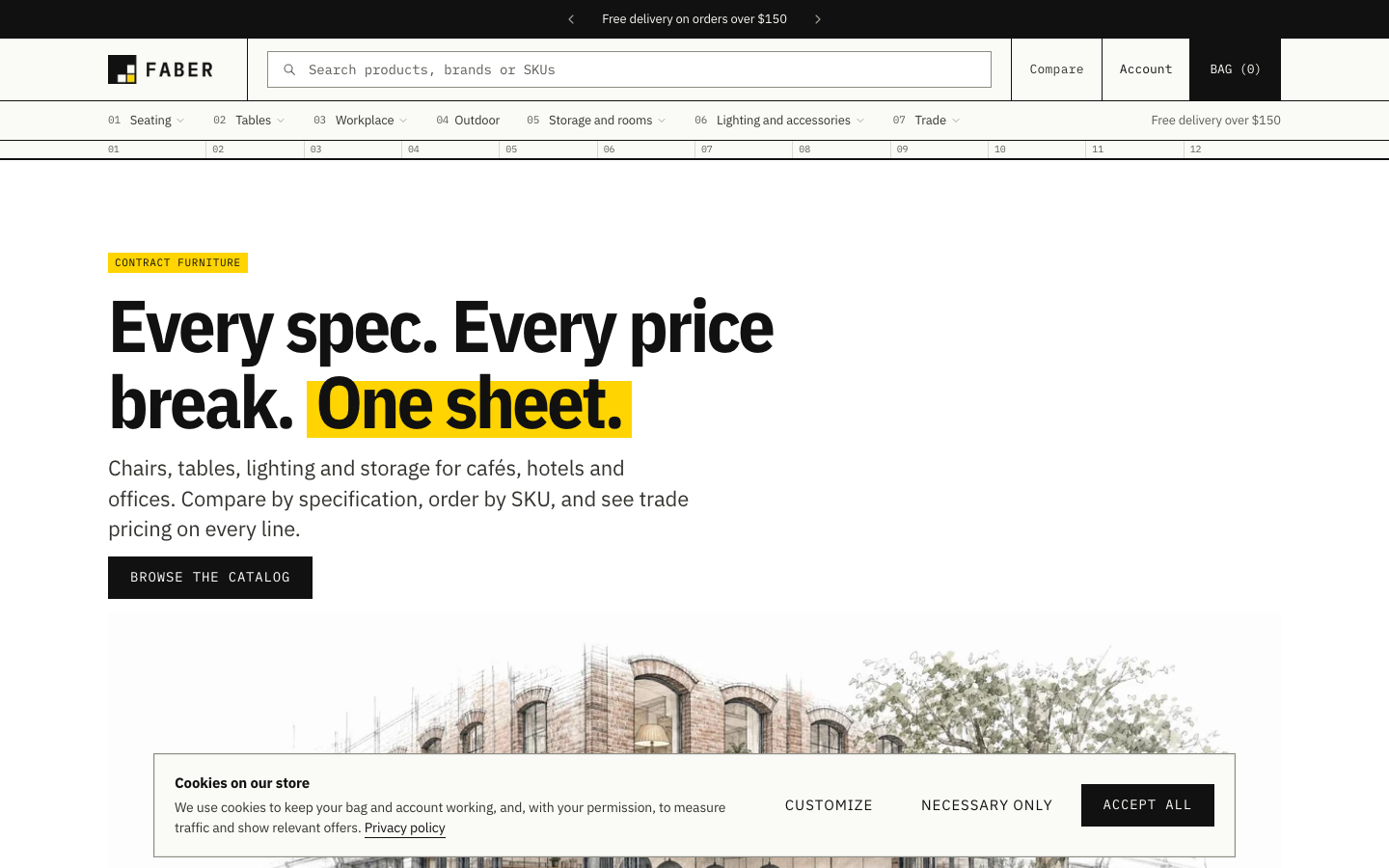
The banner. It slides in shortly after the page loads with three choices:
- Customize (Bar) or Customize choices (Card): opens the preferences dialog.
- Necessary only: declines every optional category.
- Accept all: allows every category.
A short confirmation (“All cookies allowed”, “Only necessary cookies” or “Preferences saved”) appears after a choice.
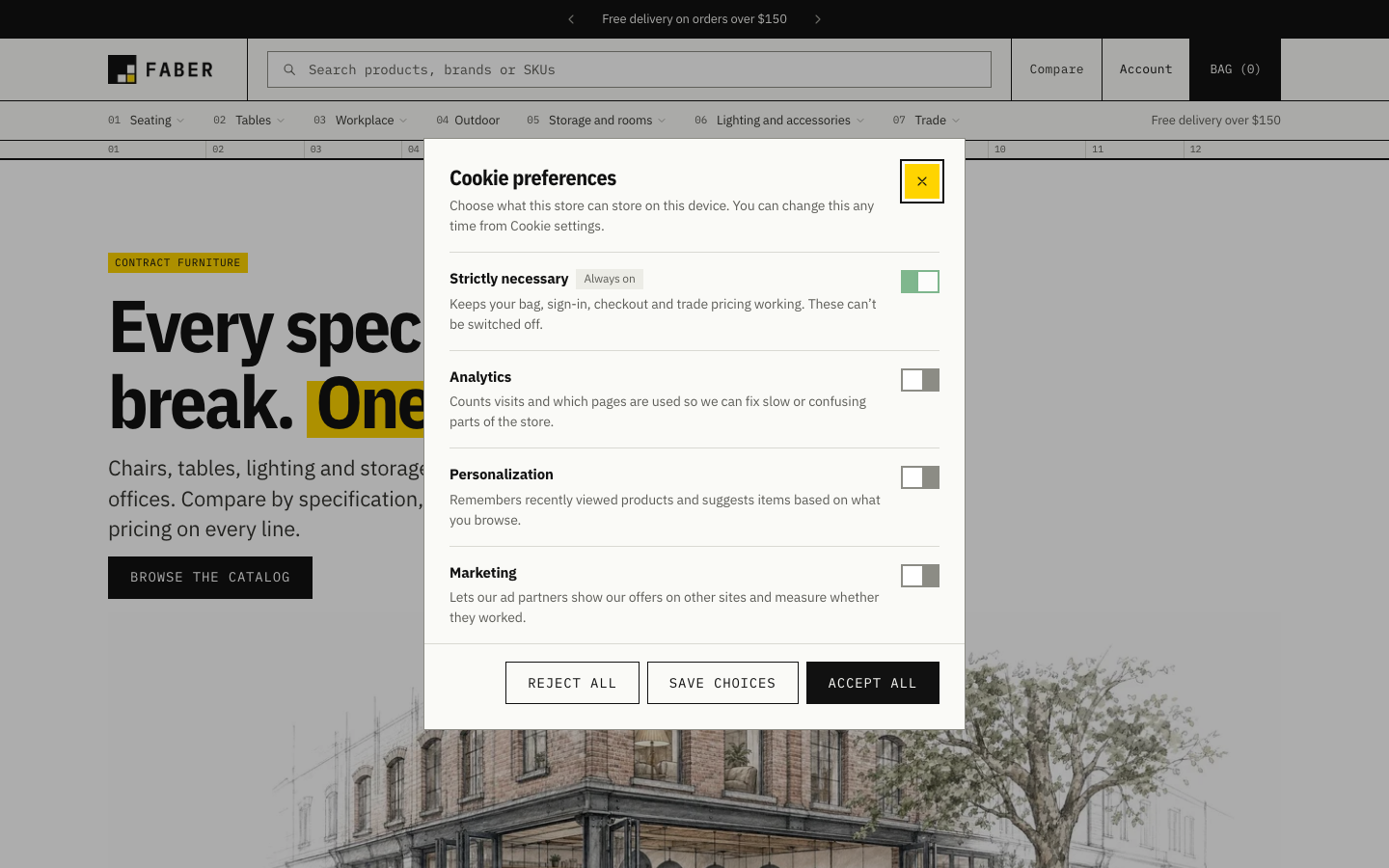
The preferences dialog lists four categories with a switch for each:
| Category | What it covers | Saved to Shopify as |
|---|---|---|
| Strictly necessary | Bag, sign-in, checkout and trade pricing. Always on. | — |
| Analytics | Counting visits and page use. | analytics |
| Personalization | Remembering recently viewed products and browsing-based suggestions. | preferences |
| Marketing | Ad partners showing your offers elsewhere and measuring them. | marketing and sale of data |
Its buttons are Reject all, Save choices and Accept all. Closing the dialog without choosing brings the banner back.
Let visitors reopen their preferences
- Any link to
#cookie-preferencesopens the dialog. Add a link named “Cookie settings” with the URL#cookie-preferencesto your footer menu in Content › Menus, and it works on every page. Many privacy laws expect this to be easy to find. With the Faber preset, where the corner button is off, this link is the way back in. - With Show a Cookie settings button after a choice on, the small Cookie settings button does it too.
Good to know
- If Shopify’s Customer Privacy API is not available, the banner is not shown at all, because a choice could not be honoured.
- Returning visitors who already chose see no banner (and, with the button on, only the Cookie settings button).
- The Newsletter popup waits until a visitor has made their cookie choice, so the two never appear together.
- On phones with the bottom navigation bar showing, the Cookie settings button moves up out of its way.
- The banner text is yours. Keep it accurate for the apps and tracking your store actually uses. This page is guidance, not legal advice.
Testing on a local preview address (such as 127.0.0.1) can fail to save choices because the privacy API needs your store’s real HTTPS address. Test consent on your store’s preview link or live domain.