Wholesale product page and variant matrix
A wholesale buyer ordering a range doesn’t pick one variant at a time. They want the terms up front (unit price, minimum order, case size, lead time, margin) and a grid to fill in sizes and colors in one go. Faber has a product template for that, wholesale, and three blocks you can also use on the regular product page.
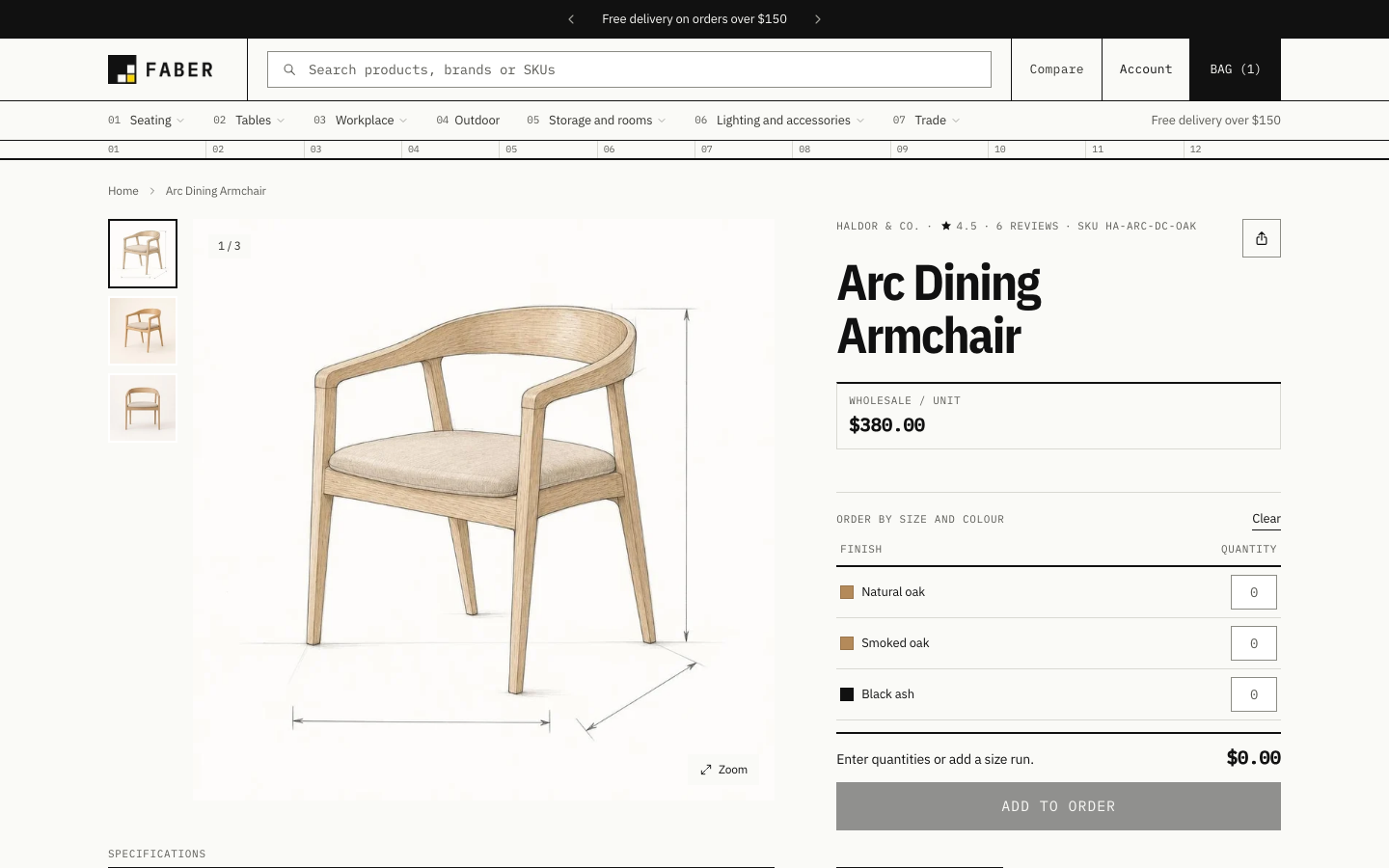
The wholesale template
The wholesale product template replaces the variant picker and buy buttons with an order grid. In order, its Product information section holds:
- the product details line, title, Wholesale terms, Volume pricing and the Variant matrix,
- Share and Print datasheet,
- under the gallery: dimensions, specifications, certifications, documents and parts and accessories,
- collapsible rows Overview, Packing and Delivery and terms.
Use it for a product
- In Shopify admin open the product.
- Under Theme template, choose wholesale. Save.
Assign it to every product you sell wholesale, or only to ranges ordered in many sizes and colors. The regular product template keeps working for the rest.
To see any product on the wholesale template without assigning it, add ?view=wholesale to the product’s address, for example /products/arc-dining-armchair?view=wholesale. To edit the template, open the theme editor and choose Products › wholesale in the menu at the top.
Wholesale terms block
One ruled row of figures. Each cell only shows when the product has the data for it:
| Cell | Shows | Comes from |
|---|---|---|
| Wholesale / unit | The price of the selected variant, and the best volume price (“$38.00 at 24+”) | The price the customer sees, and price breaks from their B2B catalog |
| Minimum order | Units of this style the buyer must order | The product metafield custom.moq (integer), or the block’s Minimum order, units |
| Case | Units per case | The product metafield custom.case_qty (integer), when it is more than 1 |
| Lead time | Text such as “Made to order · 3 weeks” | The metafield in Lead time metafield (default custom.lead_time) |
| RRP | The recommended retail price and the buyer’s margin at the list price (“42% margin at list price”) | The metafield in Recommended retail price metafield (default custom.rrp), a money or number metafield |
| Setting | Default | What it does |
|---|---|---|
| Minimum order, units | — | A minimum for the whole product, across all variants. The metafield custom.moq overrides it. |
| Lead time metafield | custom.lead_time | The metafield shown as the lead time, as namespace.key. |
| Recommended retail price metafield | custom.rrp | Money or number metafield. With it, the block shows the RRP and the margin. |
The RRP and margin are hidden when a shopper pays in a currency other than your store currency, because the metafield holds one amount. When prices are hidden from a visitor (see Trade accounts and B2B), the unit price cell shows the log-in link and the RRP cell is left out.
Variant matrix block
An order grid: one option across the top (sizes, by default) and the other options down the side (finishes or colors, with their swatches). Every available variant is a quantity field. A dash marks a sold-out variant; an empty cell is a combination you don’t sell. A product with a single option shows its values as rows with one Quantity column.
| Setting | Default | What it does |
|---|---|---|
| Heading | Order by size and colour | The label above the grid. |
| Option across the top | Size | The option shown as columns. The other options become rows. When no option has this name, the last option is used. |
| Size run: units per size | 1 | What + Size run adds to every available size in a row. |
| Minimum order, units | — | For the whole product, across all variants. The metafield custom.moq overrides it. |
| Show stock under each cell | Off | Shows the units in stock under each field, for variants whose inventory Shopify tracks. |
| Show divider | On | A rule above the block. |
How quantities work
- Rows: each row counts its units. + Size run adds the same quantity to every available size in that row (products with more than one option).
- Quantity rules and cases: a field snaps to the variant’s minimum and increment from your B2B catalog. Products with
custom.case_qtygo up in whole cases, and a note says “Sold in cases of 12: quantities go up in whole cases.” A size run in a cased product adds whole cases. - Stock: when Shopify tracks a variant’s inventory and doesn’t sell it out of stock, the field can’t go above the units in stock.
- Summary: under the grid, the total units and variants, the order total, the average price per unit and, when price breaks apply, what volume pricing saves. Each variant is priced with its own price breaks, the same way Shopify prices them in the bag.
- Minimum order: with a minimum set, a meter fills toward it (“Add 20 more units to reach the minimum order of 48.”), and Add to order stays off until it is reached.
- Add to order puts every filled cell in the bag in one go. Clear empties the grid.
The product minimum (Minimum order, units or custom.moq) is checked by the theme on this grid only. Shoppers can still buy fewer units elsewhere, for example from a collection page. If the minimum must hold for every order, set a minimum quantity per variant in the quantity rules of your B2B catalog.
Volume pricing
The Volume pricing block shows the variant’s quantity price breaks from your B2B catalog as a ruled table: the quantity range (“1–5 units”, “6–23 units”, “24+ units”), the Price per unit and the saving (“Save 8%”). It follows the selected variant, and the row for the quantity in the quantity field is highlighted, so a buyer sees which price they will pay as they change it. A note under the table says the prices are for their account and apply in the bag automatically.
The block shows nothing to customers without price breaks, so you can leave it on the regular product page and on the wholesale template. Its only setting is Heading (default “Volume pricing”).
Variant order list block
On the regular product page, the Variant order list block lists every variant of the product as a ruled row with its options, SKU, price, how many are already In bag and a quantity field. A bar at the bottom counts the units and adds them all with Add to bag. Quantities follow each variant’s quantity rule and the product’s case size, like the matrix. It shows nothing for products without variants.
| Setting | Default | What it does |
|---|---|---|
| Heading | Order several variants | The label above the list. |
| Rows | 50 | Products with more variants show the first rows and the note “Showing 50 of 120 variants. Use the options above for the rest.” |
| Show divider | On | A rule above the block. |
Use the variant order list for products with one or two options and many values, such as screws in 40 lengths. Use the matrix on the wholesale template for ranges ordered by size and color.
Metafields used on this page
| Metafield | Type | Used for |
|---|---|---|
custom.moq | Integer | Minimum order across the product (terms, matrix) |
custom.case_qty | Integer | Units per case (terms, matrix, order list, buy buttons, cart) |
custom.lead_time | Single line text | Lead time (terms, collection rows) |
custom.rrp | Money or decimal | Recommended retail price and margin (terms) |
Create these under Settings › Custom data › Products before filling them in. See Metafields the theme reads for the rest.