Other pages
Some pages are created by Shopify rather than by you. Faber styles each of them so they match the rest of your store.
Page not found (404)
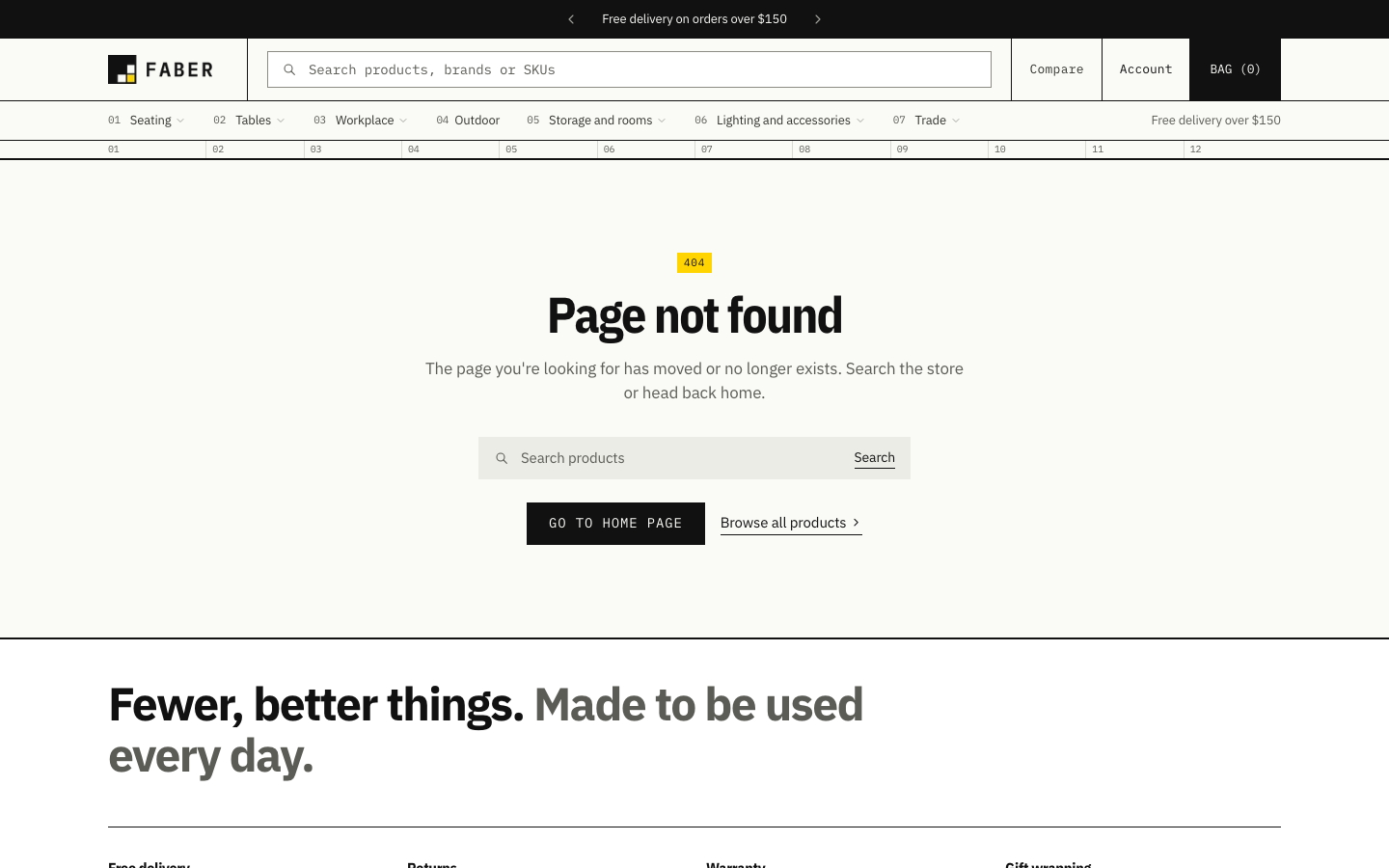
Shown when a visitor opens a link that doesn’t exist, for example an old product URL from a printed price list. It shows the 404 code, offers a search field (buyers can search by SKU), a button back to the home page and a link to browse all products, so the visit isn’t lost.
In the editor, open Others › 404 page. The Page not found section has Color scheme, Top padding and Bottom padding. You can add more sections below it, for example a Featured collection of bestsellers or a Quick order section.
To send old URLs to the right new page, create URL redirects in Online Store › Navigation › URL Redirects. This matters when product handles change after a catalog import.
Password page
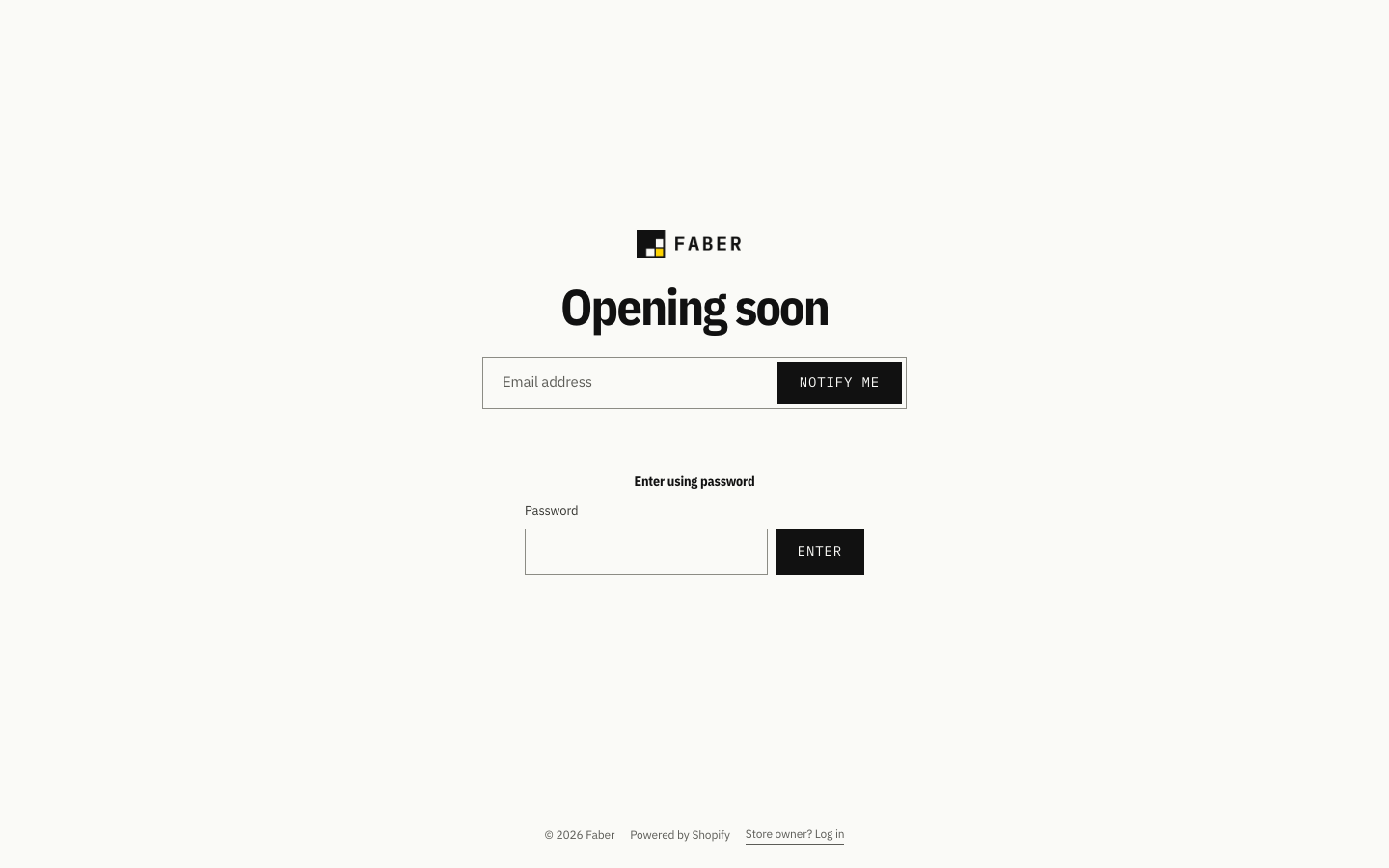
While your store is password protected (Online Store › Preferences › Password protection), visitors see this page instead of the store. It shows your logo (or store name), a heading, your password message, an optional email signup and a form to enter the store password, plus a Store owner? Log in link.
Open Others › Password in the editor. The Password page section has:
| Setting | What it does |
|---|---|
| Heading | Default “Opening soon”. |
| Show email signup | Lets visitors leave their email to hear when you open. Signups are added to Customers with email marketing consent. On by default. |
The message under the heading is the Message you write in Online Store › Preferences › Password protection.
Gift card page
When a customer buys a gift card, the recipient receives an email with a link to their gift card page. Faber lays it out like a statement:
- The card itself, with its value and number, and the recipient’s name when the card was sent to someone.
- A statement: balance (with the percentage left), original value, amount spent, status and expiry date. Expired and disabled cards say so plainly.
- The gift card code with a Copy code button.
- A QR code for scanning in a physical store with Shopify POS.
- An Add to Apple Wallet button where available.
- The sender’s message, if any.
- How to use it: four short steps, online and in store.
- A Start shopping button and Print at actual size, which prints the card at its real dimensions.
The gift card page has no settings in the editor; it uses your logo, fonts and colors. To sell gift cards, create a gift card product in Products › Gift cards. On the product page, the Buy buttons block’s Show recipient form for gift cards setting lets customers send the card to someone else on a chosen date.
Search results page
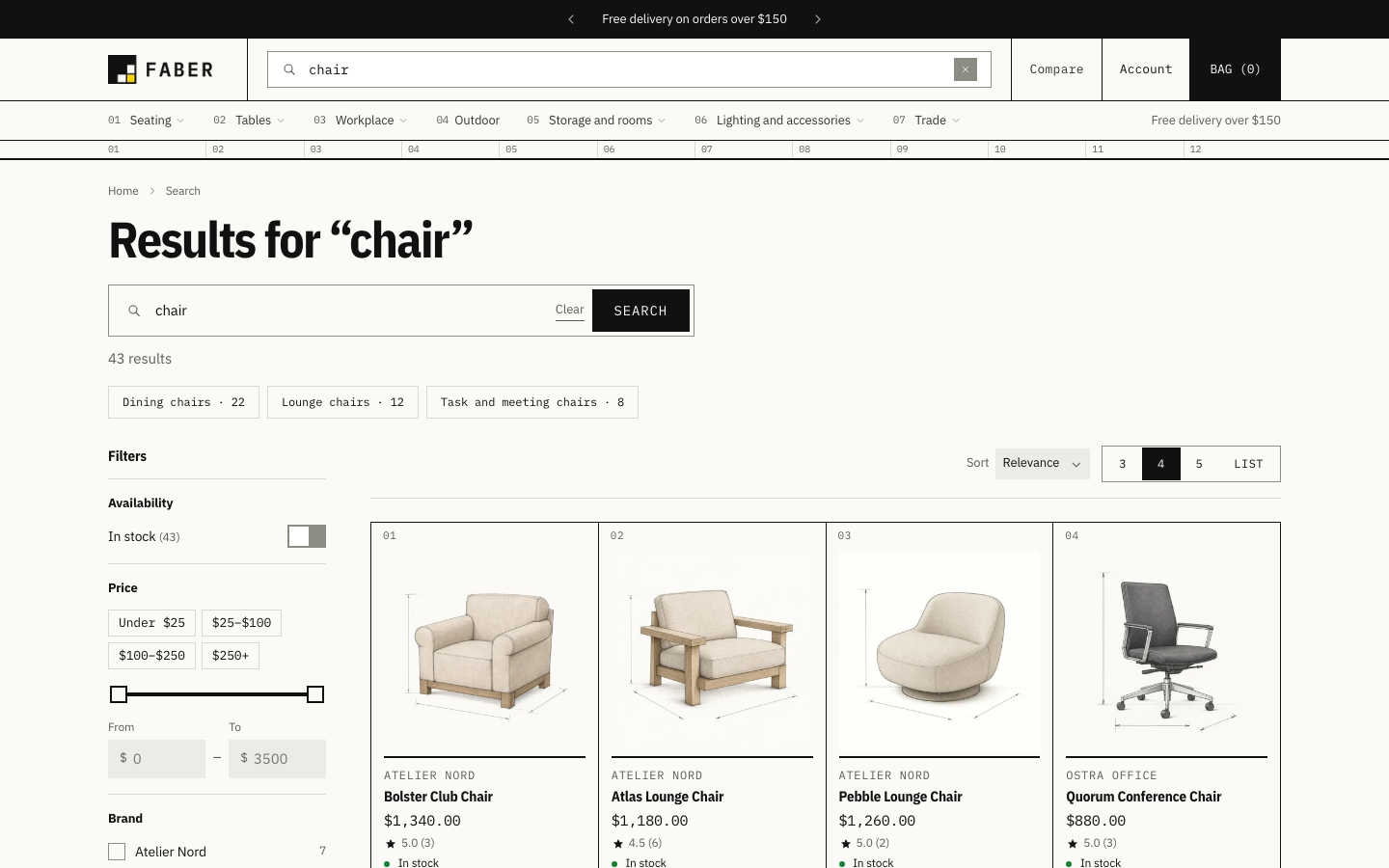
Shoppers reach this page by pressing Enter in the header search or clicking See all results. It shows a search field, matching collections as chips, filters and sorting, and results: products in the list view or the grid, and pages and blog posts as text results.
When nothing is found, the page helps the buyer recover instead of showing an empty list: “No results for …”, tips to fix the query, your Suggested searches, your main menu as a numbered list, four products from a collection you choose and a line of help text.
Open Others › Search in the editor. The Search results section has Results per page (8–48), Columns on large screens, Show grid and list view switch, Show matching collections, the Nothing found settings (Suggested searches, Browse menu, Popular products from, Help text), Enable filtering, Price shortcuts and Enable sorting. See Search.
Customer accounts
Faber works with Shopify’s customer accounts. The sign-in, account, orders and profile pages are hosted and styled by Shopify, so the theme doesn’t include account templates.
- Turn accounts on in Settings › Customer accounts.
- Brand the account pages (logo, colors) from Settings › Customer accounts; Shopify uses your brand settings there, not the theme’s.
- The header shows an account link when accounts are on, styled with the header’s Account setting. Signed-in customers see their avatar and a menu, which you can change with the customer-account-main-menu menu in Online Store › Navigation.
- B2B buyers sign in the same way. With Theme settings › Trade (B2B) › Show company and location in the header on, they see which company location they are ordering for. See Trade and B2B.
- On phones, the bottom navigation bar shows Account when accounts are on, and Search when they are off.