Search
Trade buyers often know exactly what they want: a SKU from last month’s invoice, a brand, a material. Faber has two kinds of search, both built for that:
- Predictive search in the header shows suggestions, products (with SKU), collections and pages while the buyer types.
- The search results page lists every match with filters, sorting and a grid or list view, and helps the buyer recover when nothing is found.
Predictive search
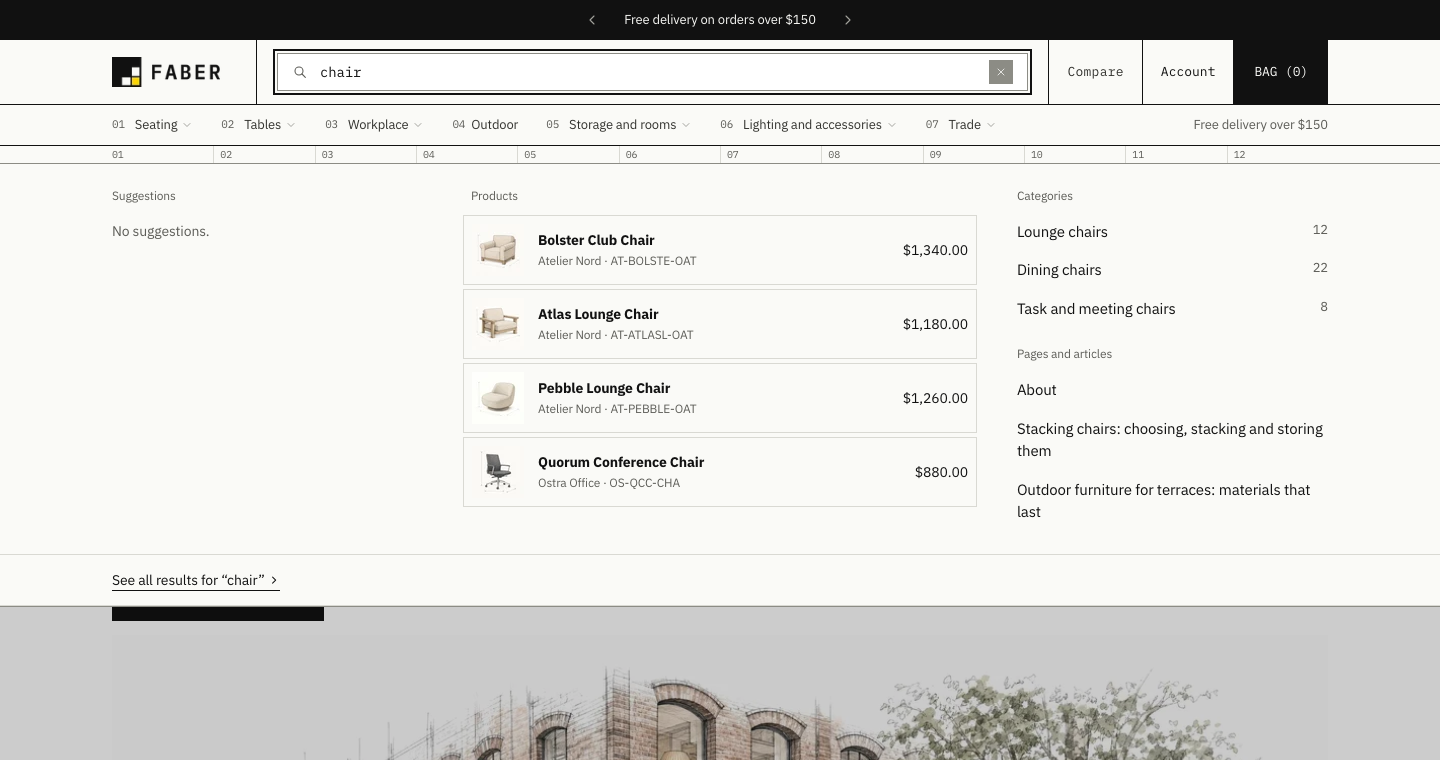
Before the shopper types, the search panel can show:
- Popular searches — terms you choose, as quick links.
- Trending — the first 4 products from a collection you choose.
- Categories — up to 6 items from the header’s main menu, with product counts.
While typing, results appear after the first few letters:
- Suggestions — up to 6 completed search terms.
- Products — up to 4, each with its image, title, vendor and SKU, and price. Available products come first; sold-out ones are listed last.
- Categories — up to 4 matching collections with their product counts.
- Pages and articles — up to 3 of each.
- See all results for ”…” opens the full results page.
Products match on their title, product type, variant names, SKU, vendor, tags and description, so typing “HA-ARC” or “oak” both find the right chairs.
Use the arrow keys to move through results and Enter to open one. Esc closes the panel.
Search settings in the header
Open Online Store › Themes › Customize, click Header, and scroll to Search.
| Setting | Default | What it does |
|---|---|---|
| Show search | On | Shows search in the header. |
| Search | Search field | Search field (a full field in the header), Icon or Icon and text (these open the field below the header). The Search first layout always shows the field. |
| Search field text | (empty) | The placeholder text in the field. Empty shows “Search products, brands or SKUs”. |
| Popular searches | (empty) | Terms separated by commas, shown before shoppers type. |
| Trending products collection | (empty) | Shows its first 4 products before shoppers type. |
See Header, menus and search for the other header settings.
Shopify decides which products match and in what order. Add synonyms and promote products in the Search & Discovery app.
The search results page
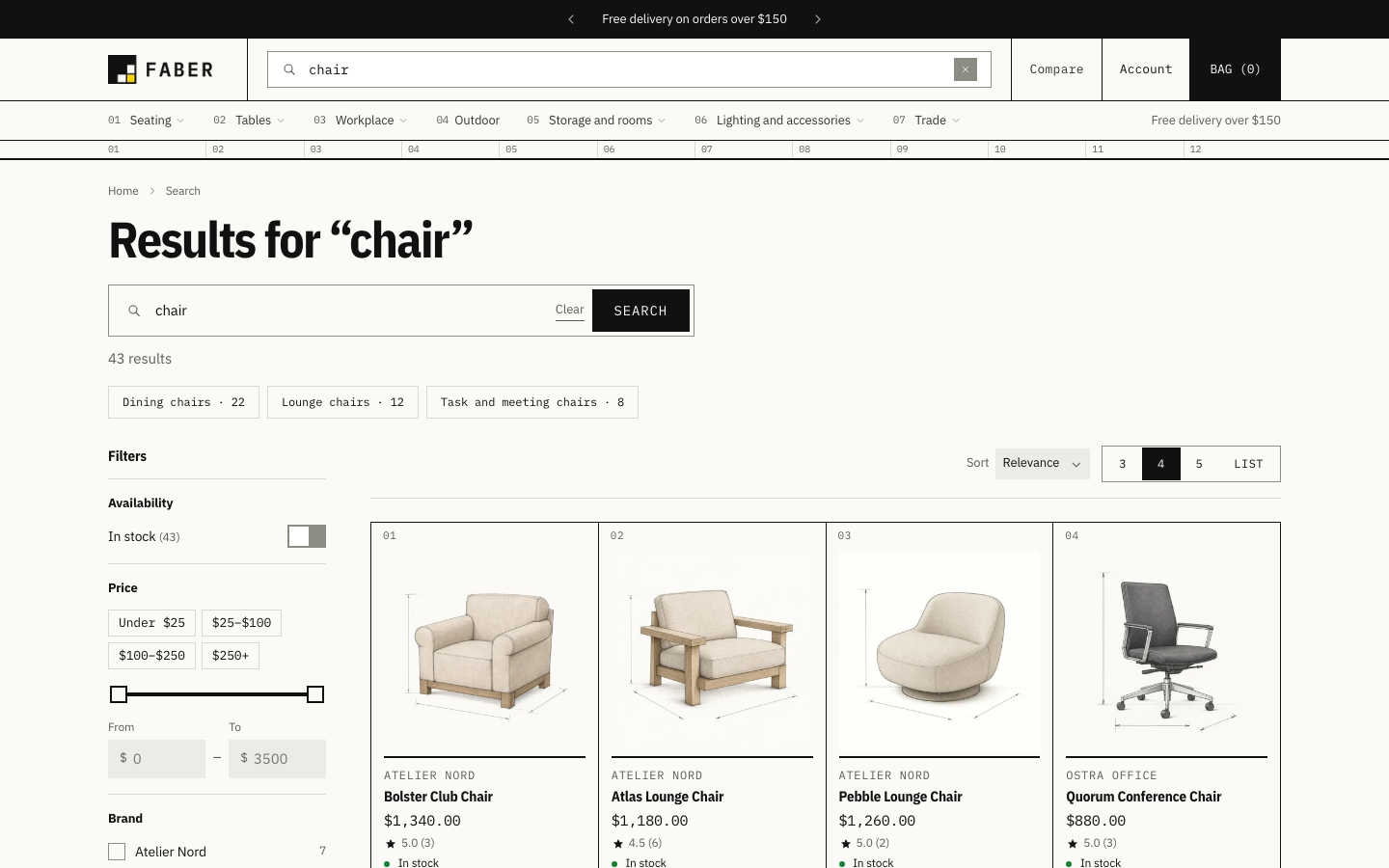
The page has a search field at the top, the number of results, chips for matching collections, the toolbar, filters and the results. Products show as product cards, or as list rows with SKU, stock, price and a quantity field when the buyer switches to List. Pages and blog posts show as text results with their type.
The search field is a ruled box with the Search button inside it. When there are search terms, a Clear link empties it.
Open it in the theme editor
In the page picker at the top of the editor, choose Others › Search, then click Search results.
Settings
| Setting | Default | What it does |
|---|---|---|
| Results per page | 24 (8–48) | How many results load at once; Load more adds the next page. |
| Columns on large screens | Four | Three, Four or Five per row. |
| Show grid and list view switch | On | Grid columns or the list (list rows), as on collection pages. The search page opens in the grid. |
| Show matching collections | On | Chips for up to 6 collections whose names match the search, with product counts. |
| Enable filtering | On | Filters from the Search & Discovery app, the same as on collection pages. |
| Price shortcuts | 25, 100, 250 | Buttons such as Under $25 above the price filter. |
| Enable sorting | On | The Sort menu (Relevance, Price, Date…). |
| Color scheme, Top padding, Bottom padding | Look and spacing. |
Filters look and work exactly as on collection pages, including Theme settings › Filters. See Collection pages and filters.
Nothing found
A search with no results never leaves the buyer at a dead end. The page shows:
- No results for ”…” and three tips: check the spelling, try fewer or more general words, search by product name, SKU, material or brand.
- Try searching for — your Suggested searches as links.
- Browse the store — the top links of the Browse menu as a numbered, ruled list.
- Popular right now — four products from the Popular products from collection, with See all.
- Your Help text, for example a line pointing to the trade desk or quick order.
When filters are on and hiding results, the page says so with a Clear filters link. When nothing was found and no filters are on, the filters, sort and view switch are hidden so the page stays simple. The same help shows on the search page before a search, under the prompt “Enter a product name, brand or SKU to start searching.”
| Setting (Nothing found) | Default | What it does |
|---|---|---|
| Suggested searches | (empty) | Terms separated by commas, for example dining chair, bar stool, pendant. |
| Browse menu | Main menu | The menu whose top links are listed. |
| Popular products from | (empty) | A collection, for example Bestsellers. Shows its first four products. |
| Help text | Still can’t find it? Get in touch and we’ll help you track it down. | Rich text with links. |
Tips
- Fill in product types, vendors and tags — they power both filters and search.
- Use Popular searches for what your customers actually look for; Shopify’s analytics (Analytics › Reports › Top online store searches) shows the most common terms.
- Check the searches-with-no-results report in Analytics › Reports now and then, and add the missing terms to products (in tags or the description) or to Suggested searches.
- Fill in SKUs on every variant: buyers who reorder search by SKU first.