The Faber preset
A preset is a starting point: a set of theme settings plus a ready-made home page. Faber comes with one preset, also called Faber, which is applied when you add the theme. It uses only the theme’s own sections, so you can change anything afterwards.
| Faber | |
|---|---|
| Made for | Specialist and trade suppliers with large, spec-heavy catalogs. The demo store is a contract furniture supplier for cafés, hotels and offices. |
| Home page | 20 sections that take a buyer from the catalog’s contents to a reorder |
| Colors | Ink (#111111) on paper (#FAFAF7), with a yellow highlighter (#FFD400) behind ink |
| Fonts | IBM Plex Sans Condensed for headings, IBM Plex Sans for text, IBM Plex Mono for data |
| Shapes | Square: corner roundness 0%, square buttons, square swatches |
| Buttons | Ink buttons, uppercase labels in the data font, Highlighter hover effect |
| Header | Title block: ruled cells, numbered menu layout with the numbered column ruler |
| Footer | Bottom row as a title block of ruled cells |
| Collections | List view (rows with spec columns) by default |
| Motion | Reveal on scroll and fade between pages off; hover zoom on |
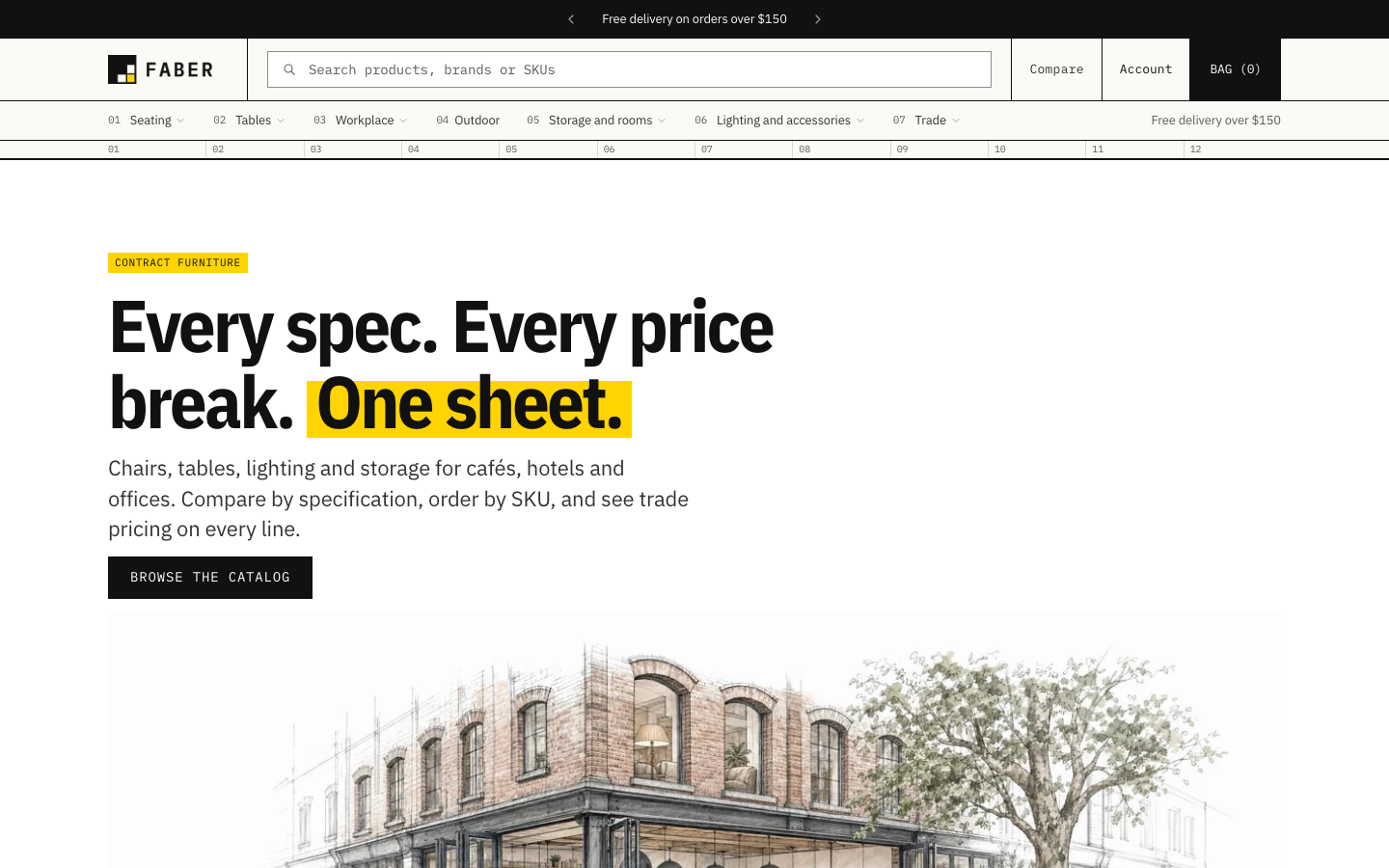
The Faber home page
The order follows a trade buyer’s visit: what the store is, where things are, what is in stock, how to choose, how to order again.
- Hero: a short label, the heading “Every spec. Every price break. One sheet.”, a line on what you sell and one call to action.
- Artwork band: a full-width Content section with a background image that repeats across the page. It ships without an image; add your own or remove the section.
- Services: four points (delivery, returns, trade pricing, samples) before buyers start browsing.
- Shop by space: a collection mosaic of the places you furnish (cafés and restaurants, lobbies, offices, terraces).
- Departments: the catalog’s contents page, numbered rows with a dot leader to each collection’s product count.
- In stock now: tabbed collections (Bestsellers, New in) in a ruled grid.
- Statement: one large sentence about the business, with a highlighted phrase.
- Shop the look: a project photo with hotspots on the pieces used.
- Which table top?: comparison tabs with rated properties.
- From brief to delivery: a timeline of how a project order runs.
- Promotions: a signature collection and the trade program, side by side.
- Product finder: “Find the right chair in three questions”.
- Order in just a few clicks: a short introduction to quick ordering.
- Reorder by SKU: the Quick order section.
- Product bundle: buyers tick the pieces of a set and add them to the bag in one go.
- Testimonials: scrolling quotes from operators and designers.
- Brands we stock: a logo list.
- Specifier notes: blog posts with buying guides.
- Showrooms: the store locator.
- Questions: an FAQ with numbered answers.
A template holds at most 25 sections, so the home page has room for five more. The trade sections the preset doesn’t use on the home page, such as the Volume pricing calculator, Size guide and Featured product, are all in Add section. See Home page and content sections.
Other templates in the preset
Faber also comes with page and product templates built for a trade store. Assign them to a page or product in your Shopify admin (see Alternate templates):
| Template | What it holds |
|---|---|
| about | Story, numbers, team, clients and a call to open a trade account |
| contact | Contact form with your details |
| faq | Six groups of numbered questions, from ordering to payment |
| lookbook | Shoppable project scenes |
| quick-order | Quick order by SKU, the paste-a-list order pad and saved order lists |
| samples | How to order finish samples, with a swatch product |
| shipping | Delivery options, lead times and returns |
| size-guide | Sizing help with real numbers |
| stores | Showrooms and trade counters with a map |
| trade-account | Trade account application, next steps and benefits |
| wholesale | The trade program and price breaks |
| compare | The product compare page |
| product.wholesale | A product page for bulk orders: wholesale terms, volume pricing and a variant matrix, without the usual buy buttons |
| product.guided, product.editorial, product.reviews | Alternative product page layouts |
Replace the demo content
The preset installs real copy and settings, so check these before you launch:
- Placeholders to replace: testimonial quotes and names, brand names in the logo list, showroom addresses, team names and the numbers on the about page describe the demo business. Only publish real quotes and real details.
- Policies mentioned in the copy: delivery times, the 30-day returns window, samples, trade price breaks and payment terms in the services strip, promotions and FAQ describe policies you must actually offer. Edit them to match yours.
- Products and collections: the home page points at the demo store’s collections and products. Pick your own in Shop by space, Departments, In stock now, Shop the look, the product finder and the bundle; until you do, they show placeholders or nothing.
- Specification columns and spec sheet: the list view and the product spec sheet start with the demo’s furniture metafields (finish, material, seat height and so on). Point them at your own metafields; see Metafields the theme reads.
Changing the look later
The preset only applies when you add the theme. After that, every setting in the table above is yours to change: Theme settings › Colors, Typography, Layout, Buttons and Animations, and the Header and Footer sections. For example, a lighting wholesaler might swap the yellow highlighter for a pale green in each color scheme, choose Simple shade for the button hover, and switch collections to the grid view if their buyers shop by photo.
Faber is designed around its look, though: square edges, rules, the data font and the highlighter work together. See The drawing sheet for the parts you can switch off one by one.